
Table designer
- PostgreSQL
- MySQL
- MariaDB
The table designer creates a table or changes an existing one without writing DDL by hand. You edit the design in tabs, problems show as you type, and Save shows the exact script, with warnings for changes that could lose data, before anything runs.
Open the designer
Section titled “Open the designer”- New table. In the sidebar, right-click a Tables folder (or use its Actions button) and choose New table…. In the Objects tab, while it lists tables, use the New table button. From the command palette (Ctrl + Shift + P, Cmd on macOS), run Table: Create Table… and pick where the table goes.
- Existing table. Right-click the table and choose Design table, or select it in the Objects tab and use the Design table button. In an ER diagram, choose Design in the table’s details.
Design a table
Section titled “Design a table”Type the table name in the toolbar, then work through the tabs:
| Tab | What you edit |
|---|---|
| Columns | Name, type, Not null, Key, Default and Comment; identity (GENERATED BY DEFAULT or GENERATED ALWAYS) on PostgreSQL, AUTO_INCREMENT on MySQL and MariaDB |
| Indexes | Name, columns or expressions, method; on PostgreSQL a partial index condition and included columns |
| Foreign keys | Columns, referenced table and columns, On update and On delete; deferrable on PostgreSQL |
| Unique | Unique constraints |
| Checks | Check constraints with their condition |
| Triggers | Name, timing and definition |
| Partitions | Partition method and key, shown when the server supports partitions |
| Options | Table options of the engine |
| Comment | The table comment |
| SQL preview | The script a save would run |
Choose Add column, Add index, Add foreign key, Add unique constraint, Add check or Add trigger to add a row to a tab.
The design is checked as you type. A tab with errors shows how many, and the bar at the bottom lists the problems to fix before saving; click one to go to its tab. Save stays disabled while there are errors.
Revert throws away your edits. Reload reads the table from the server again. For an existing table, Open data opens its rows.
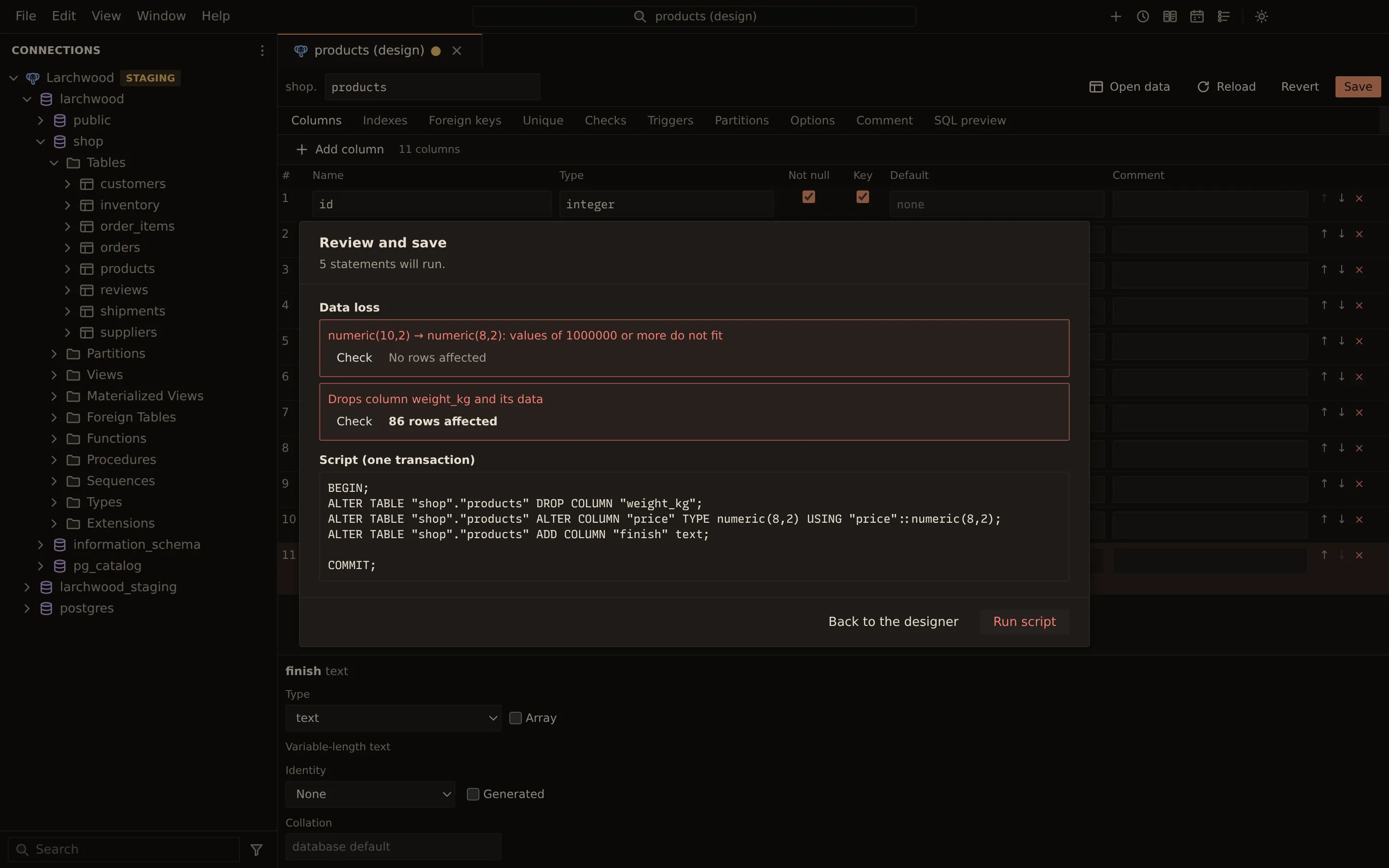
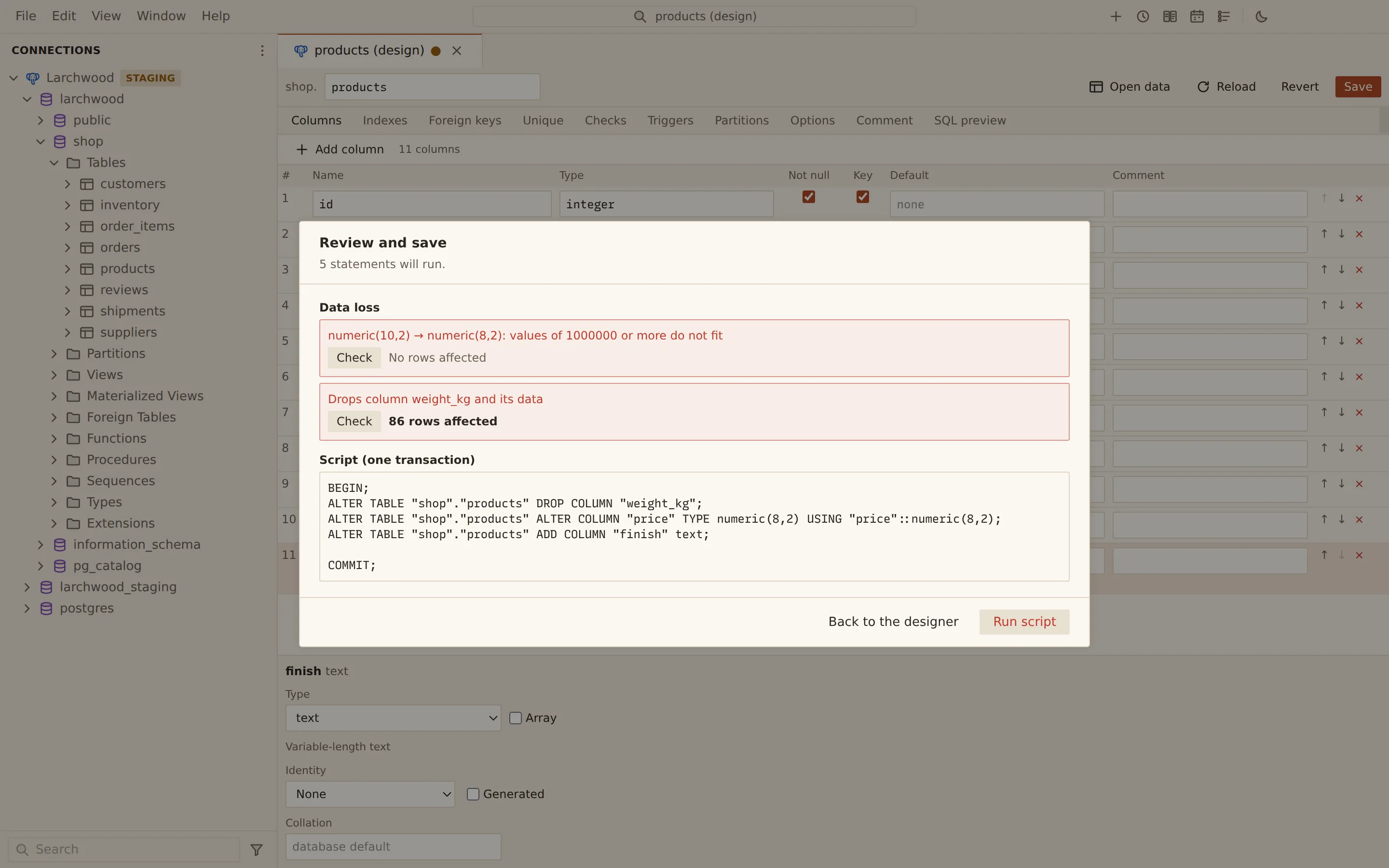
- Choose Save. The Review and save dialog shows how many statements will run.
- Read the warnings, grouped as Data loss, May fail on existing data and Notes.
- For a warning about existing rows, choose Check to count the rows it affects, and Show rows to list them.
- Read the script, then choose Run script.
A renamed column is written as a rename (RENAME COLUMN on PostgreSQL, the engine’s own form on
MySQL and MariaDB), not as a drop and an add, so its data stays. Renaming name to
full_name and adding a phone column produces these statements:
ALTER TABLE "shop"."customers" RENAME COLUMN "name" TO "full_name";ALTER TABLE "shop"."customers" ADD COLUMN "phone" text;On PostgreSQL the script runs in one transaction. MySQL and MariaDB commit each DDL statement at once: if one fails, the ones before it stay applied. The review says so.
On a connection marked production, the button reads Run on production.
Drop a table
Section titled “Drop a table”- Right-click the table in the sidebar and choose Drop table…, or select it in the Objects tab and use the Drop table button.
- Querybara checks what depends on the table, then shows the script.
- Choose Drop table.
On PostgreSQL, a view that depends on the table blocks the drop until you drop the view. A foreign key in another table that references it blocks the drop on every engine. On MySQL and MariaDB, a view that uses the table is listed as a warning, because it stops working.
From the command line
Section titled “From the command line”querybara ddl prints the schema as a DDL script in dependency order.
See querybara ddl for every flag.
Related
Section titled “Related”Documents Querybara 0.1.1 · built frombc9f5aa