
Import
- PostgreSQL
- MySQL
- MariaDB
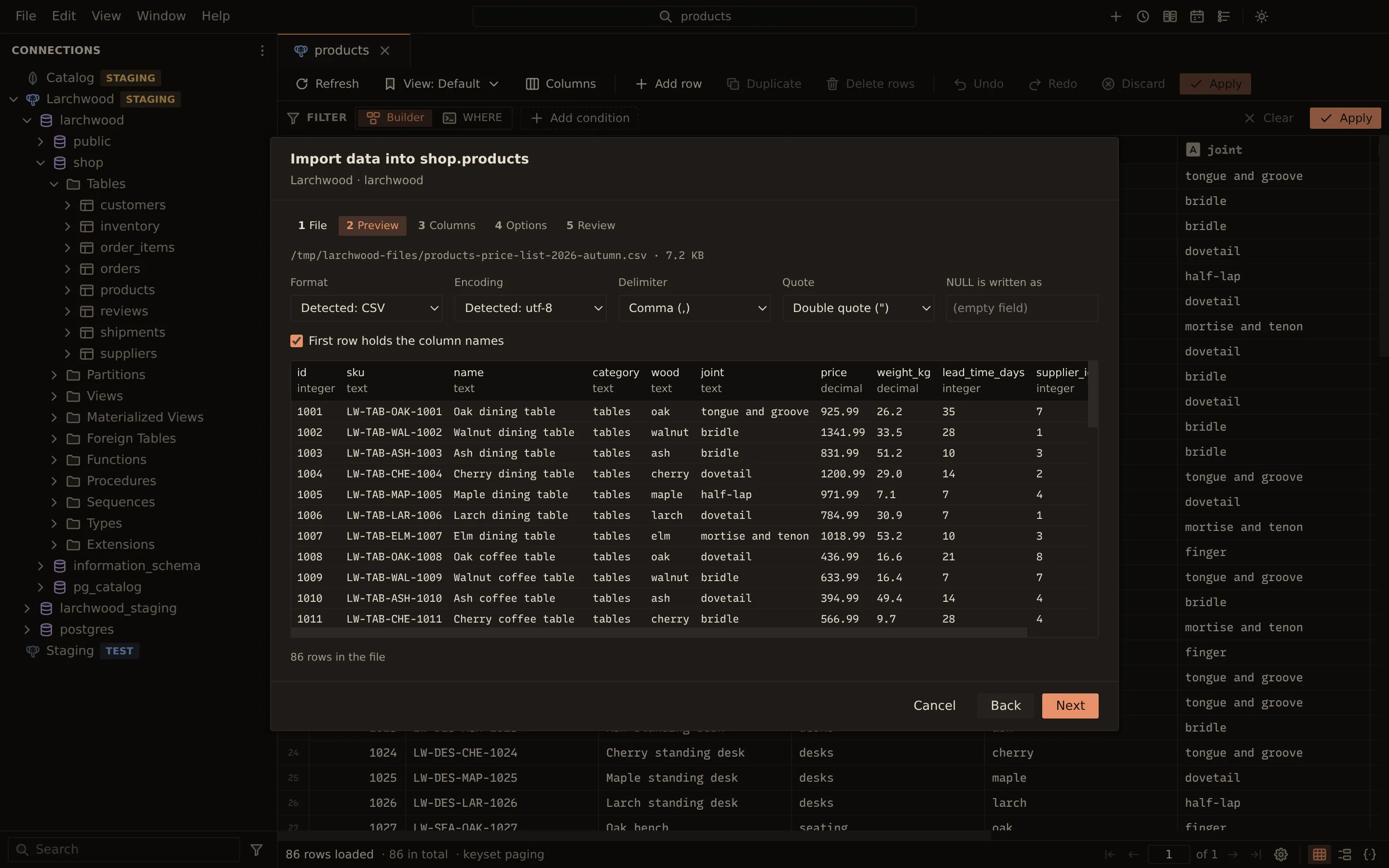
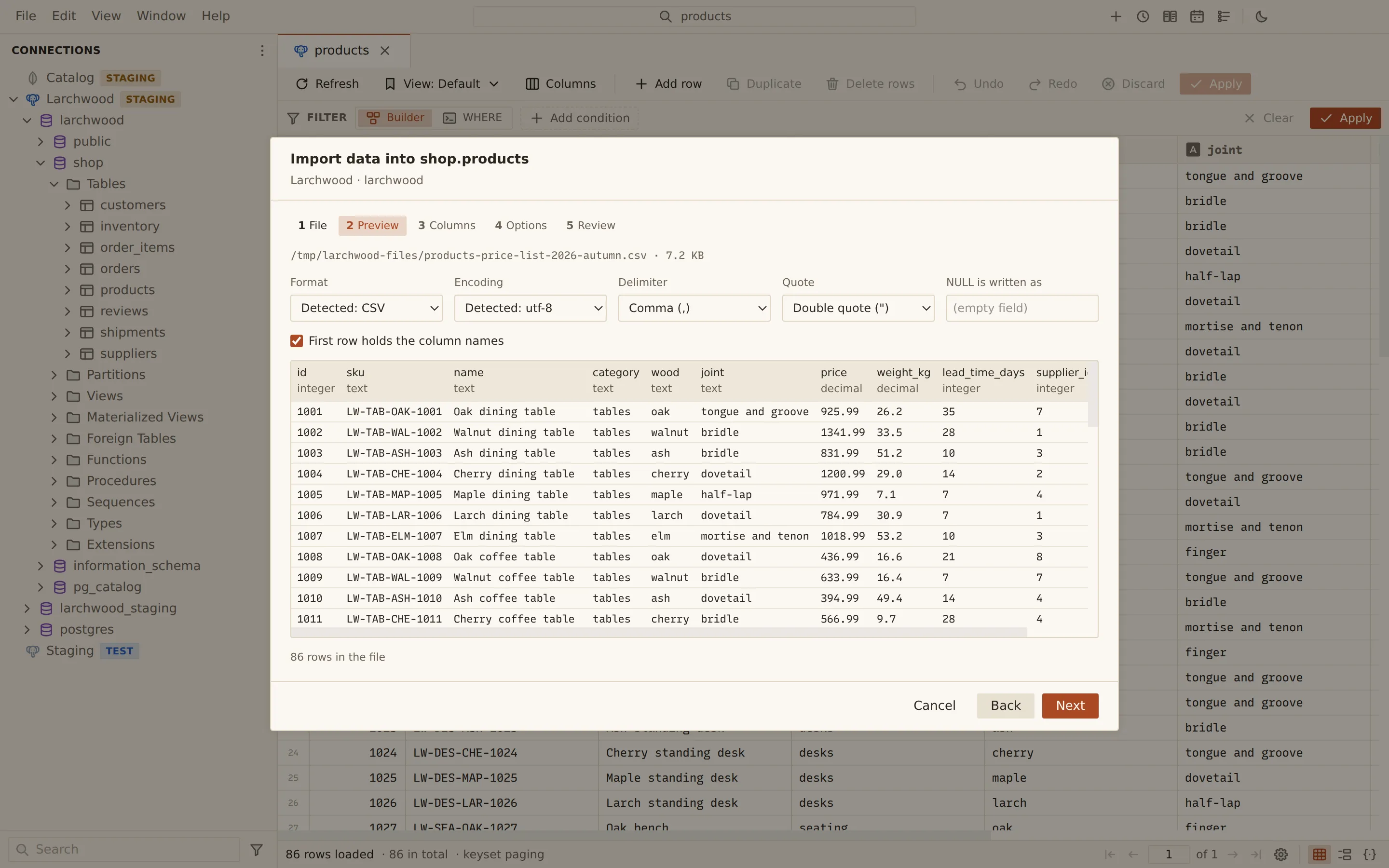
The import wizard loads a file into a table. It detects how the file is written, shows a live preview, matches the file’s columns to the table’s, and runs the load as a job in its own process, so you can keep working while it runs.
Formats
Section titled “Formats”| Format | Notes |
|---|---|
| CSV, TSV | Delimiter, quote, header and encoding detected |
| JSON | An array of objects |
| JSON Lines | One object per line |
| Excel | .xlsx workbooks, read as a stream; pick the worksheet and the header row |
| XML | Rows are the elements at a path, detected from a sample or chosen; attributes and child elements become columns |
| Parquet | Typed columns from the file’s schema; lists, maps and structs become JSON text |
Text formats can be gzip-compressed. Legacy .xls and password-protected workbooks are refused.
Parquet
Section titled “Parquet”A Parquet file is recognised by its .parquet, .parq or .pq extension, or by its contents.
Its columns keep their types: decimals stay exact, dates keep BC and five-digit years, times and
timestamps keep every microsecond or nanosecond, and UUIDs come in as their text. Binary values
come in as \x hex. Nested columns (lists, maps, structs) come in as JSON text, one value per row.
Querybara reads Snappy, GZIP, ZSTD, Brotli and LZ4 pages, and uncompressed ones. Files compressed with LZO, and encrypted files, are refused with a message saying so. The file is read one row group at a time, so a large file does not need to fit in memory.
Import into a table
Section titled “Import into a table”-
In the sidebar or the Objects tab, right-click a table and choose Import data…. To create a table, right-click a schema (a database on MySQL and MariaDB) and choose Import into new table….
-
File: choose Choose file… and pick the file.
-
Preview: check the detected settings and the sample rows, with each column’s inferred type under its name. Change what was detected if needed:
- Format, and Encoding (shown as Detected: …)
- CSV and TSV: Delimiter, Quote, NULL is written as and First row holds the column names
- Excel: Worksheet and Header row (0: none)
- XML: Rows are the elements at, or Or type a path
- Parquet: Parquet file shows the row count, the row groups, the codecs and the program that wrote the file. There is no encoding to choose.
The preview updates as you change them.
-
Columns: file columns are matched to table columns by name; case, spaces,
_and-do not count. Pick a different Table column for a file column, or — skip — it. Unmapped table columns get their defaults. -
Options: pick the mode and the batch and error settings (see below).
-
Review: check the file, format, target, column pairs, mode and options, then choose Import.
- You pick a file: CSV, TSV, JSON, JSON Lines (gzipped too), Excel or XML.
- Querybara detects the format, delimiter, header and encoding, and shows a live preview.
- Columns are matched to the table automatically; for a new table, types are inferred.
- You choose a mode: append, update, upsert, delete or replace.
- The job runner process streams the rows in, with progress, while you keep working.
- A row that fails is reported by row, line and column. Cancel rolls the import back.
Import into a new table
Section titled “Import into a new table”When you start from Import into new table…, the Columns step plans the table instead.
Querybara proposes a Table name from the file and a column name and type for each file column,
from the types it inferred. For a Parquet file, the types come from the file’s schema rather than
from the sample values. For each column you can untick Import, rename it, change its
Type, and set Nullable and Primary key. The CREATE TABLE statement is shown below the
table.
The mode applies when importing into an existing table:
| Mode | What it does |
|---|---|
| Append | Inserts every row |
| Update | Updates rows that match on the key columns |
| Upsert | Inserts new rows and updates the ones that match |
| Delete matching | Deletes rows that match on the keys |
| Replace | Empties the table, then inserts every row |
For Update, Upsert and Delete matching, tick the Key columns (rows match on these).
Options
Section titled “Options”| Option | Choices |
|---|---|
| Rows per batch | How many rows each statement batch holds |
| Transaction | One for the whole file or One per batch |
| When a row fails | Stop and roll back, or Skip it and continue |
| Turn off foreign key checks during the load | Existing tables. On PostgreSQL it also skips triggers and needs a superuser |
With Skip it and continue, each failed row is listed in the Jobs panel with its row, line and column. Cancel in the Jobs panel stops the import and rolls back its transaction.
Saved settings keeps the wizard’s choices under a name (Save settings…) for the next import; file paths are never saved.
From the command line
Section titled “From the command line”querybara import takes the same formats, modes and options. It exits 0 when imported, 1 when rows
were skipped, 2 on failure and 130 when interrupted.
querybara import dev --table shop.customers --file customers.csvquerybara import dev --table shop.products --file products.json.gz --mode upsert --key idquerybara import dev --table shop.orders --file q3.xlsx --sheet July --header-row 3querybara import dev --table shop.orders --file orders.xml --row-path /export/table/rowquerybara import dev --table shop.order_items --file items.tsv --create --on-error skipquerybara import dev --table shop.orders_archive --file orders.parquet --createRelated
Section titled “Related”Documents Querybara 0.1.1 · built frombc9f5aa