
Schema analysis and options
- MongoDB
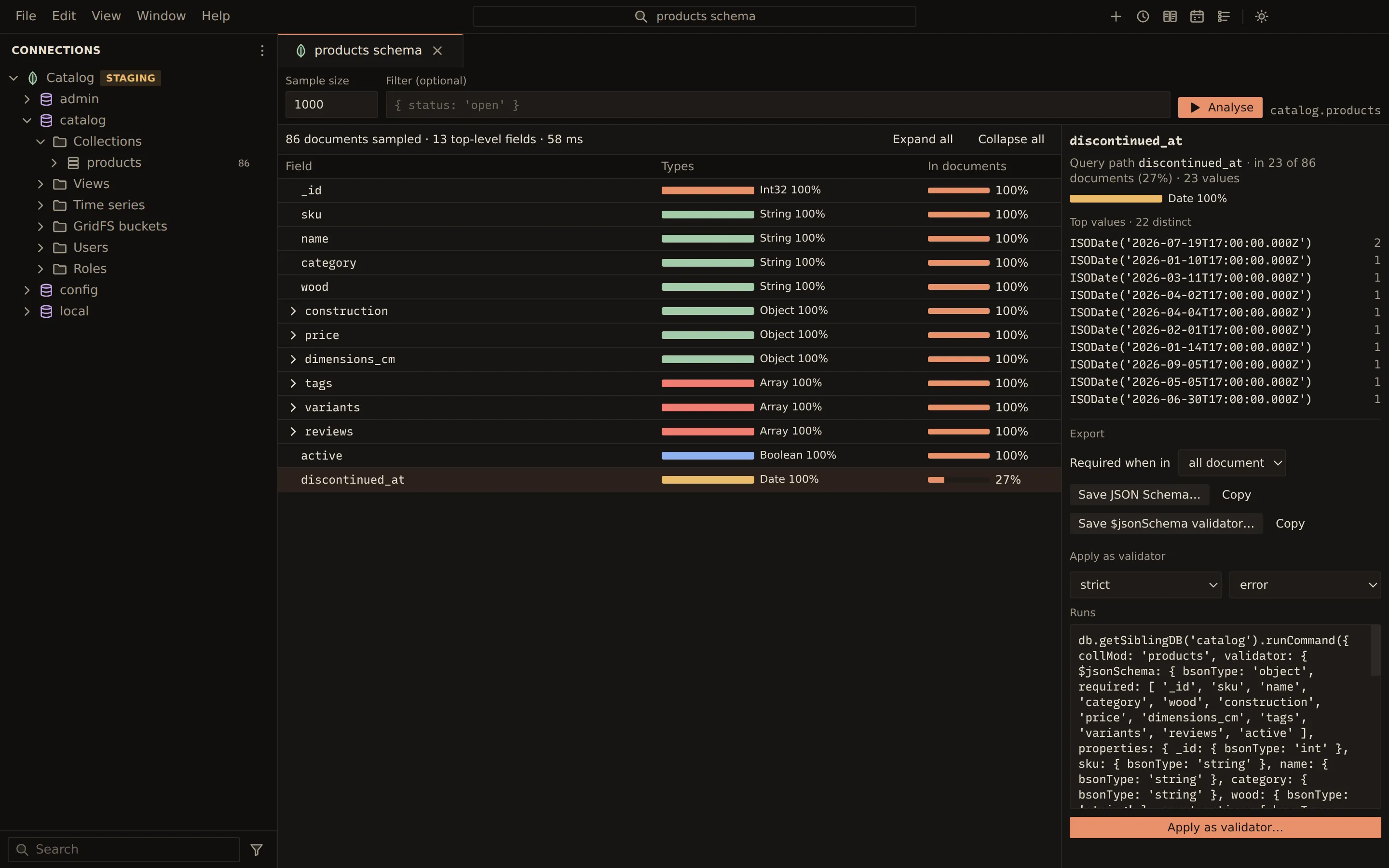
Schema analysis reads a sample of a collection and shows every field it found, the mix of BSON
types each field holds and the share of documents that have it. From the result you can export a
JSON Schema, export or apply a $jsonSchema validator. The options panel shows a collection’s or
view’s settings and changes its validation, expiry and name.
Analyse a collection
Section titled “Analyse a collection”- Choose Analyse schema from a collection’s menu in the explorer, or Tools › Schema in the collection view.
- Set the Sample size (1,000 by default, up to 100,000) and, optionally, a Filter
(optional) such as
{ status: 'open' }. - Choose Analyse. Cancel stops a long run.
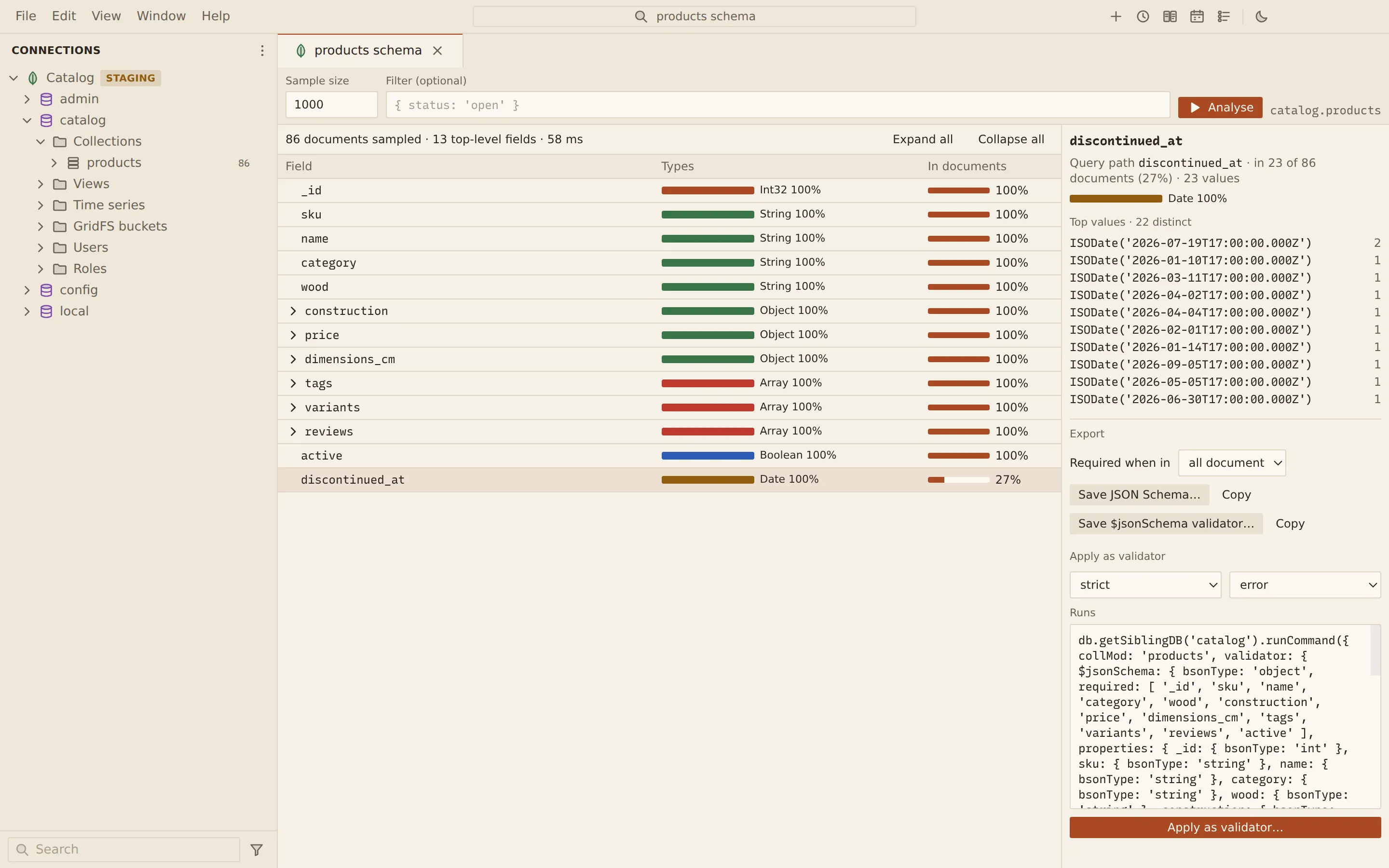
The summary reads, for example, “1,000 documents sampled · 12 top-level fields”. The fields form a tree; Expand all and Collapse all open or close every level.
| Column | Shows |
|---|---|
| Field | The field name, nested under its parent. |
| Types | A bar of the BSON types found, such as Int32 100%. |
| In documents | The share of sampled documents that have the field. |
Select a field to see its query path, how often it appears, and its Top values (marked “approximate” when they are estimated).
Export the schema
Section titled “Export the schema”Under Export, Required when in decides which fields the schema marks as required: those in all documents, 99%, 90% or half of them.
| Button | What it does |
|---|---|
| Save JSON Schema… | Saves the schema as a JSON Schema file. |
| Save $jsonSchema validator… | Saves it as a $jsonSchema validator. |
| Copy | Copies the one beside it to the clipboard. |
Apply it as a validator
Section titled “Apply it as a validator”- Under Apply as validator, pick the Validation level (
strict,moderateoroff) and the Validation action (error,warnorerrorAndLog). - Check the
collModcommand shown below them. - Choose Apply as validator…, then Apply in the confirmation.
From then on, the document editor shows which rules a refused document breaks. A view cannot take a validator, and a read-only connection cannot apply one.
Collection and view options
Section titled “Collection and view options”Choose Options from a collection’s or view’s menu, or Tools › Options in the collection view. The panel has these sections:
| Section | What you can do |
|---|---|
| Overview | See the Type, Documents, Data size and Index size, the time series fields, a view’s source and pipeline, and All options. |
| Validation | Edit the validator (a query document or { $jsonSchema: … }; empty removes it), Validation level and Validation action, then Save validation…. |
| Expiry | For time series and clustered collections: Delete documents after (seconds; empty or off for never), then Save expiry…. |
| Rename | Enter a New name, optionally Replace an existing collection of that name, then Rename…. |
| Drop | Drop collection… or Drop view…. |
Views have no Validation section. Each section shows the command it runs, and a rename or a drop always asks before it runs.
Related
Section titled “Related”Documents Querybara 0.1.1 · built frombc9f5aa