
Value editors
- Redis / Valkey
Opening a key shows its value in an editor made for its type. The header shows the key, its type,
TTL, length, encoding and memory size, with Refresh, TTL…, Rename…, Copy… and
Delete. Everything is binary-safe: bytes that are not printable show as \xNN escapes, and you
can type them the same way.
Open a value
Section titled “Open a value”Click a key in the side bar tree or in the key browser. A key in the results of a search index opens the same way. For the key actions in the header, see Keys.
Edits and confirmations
Section titled “Edits and confirmations”Each edit is sent on its own as soon as you save it. Edits that remove data, such as removing a hash field or a list element, always ask first. On a production connection, or one that confirms writes, every edit asks first; a read-only connection does not change values.
Strings
Section titled “Strings”A string can be viewed as Text, JSON, Hex or MessagePack; Querybara picks the view that fits the bytes. Edit the value and choose Save, or press Ctrl + S (Cmd + S on macOS). Revert drops your changes.
A value larger than 1 MiB is read and shown by range, as a read-only hex dump; Previous range
and Next range move through it. Use SETRANGE in the CLI to change part
of it.
Bitmaps
Section titled “Bitmaps”The Bits view of a string draws its bits (the first 4,096), with the BITCOUNT and the offsets
of the first bits that are set.
HyperLogLog
Section titled “HyperLogLog”A string that holds a HyperLogLog opens in the HyperLogLog view, which shows its encoding and
the PFCOUNT estimate of distinct elements. Add elements with PFADD in the CLI; the raw registers
are in the Hex view.
Hashes
Section titled “Hashes”Fields and values in a grid, loaded a page at a time with HSCAN. Filter with Field pattern.
Double-click a row to edit it and press Enter to save or Esc to cancel.
+ Add field adds a field and value.
Elements with their Index, loaded a page at a time with LRANGE. Edit an element in place.
+ Push element adds one at the Head (LPUSH) or the Tail (RPUSH).
Members loaded a page at a time with SSCAN. Filter with Member pattern; + Add member adds
one.
Sorted sets
Section titled “Sorted sets”Members with their Score, ordered Lowest first or Highest first. Edit a member or its score in place; + Add member adds one with a score.
A geo key is a sorted set. Tick Geo view to see each member’s Longitude and Latitude.
Streams
Section titled “Streams”The stream editor has two tabs.
Entries lists entries by ID range. Enter a start and an end ID and choose Load; leave them
empty for the whole stream. Newest first (on to start with) lists the latest entries first.
Add entry adds an entry with its fields and values; the ID starts as *, which lets the
server pick one. Delete removes an entry after a confirmation.
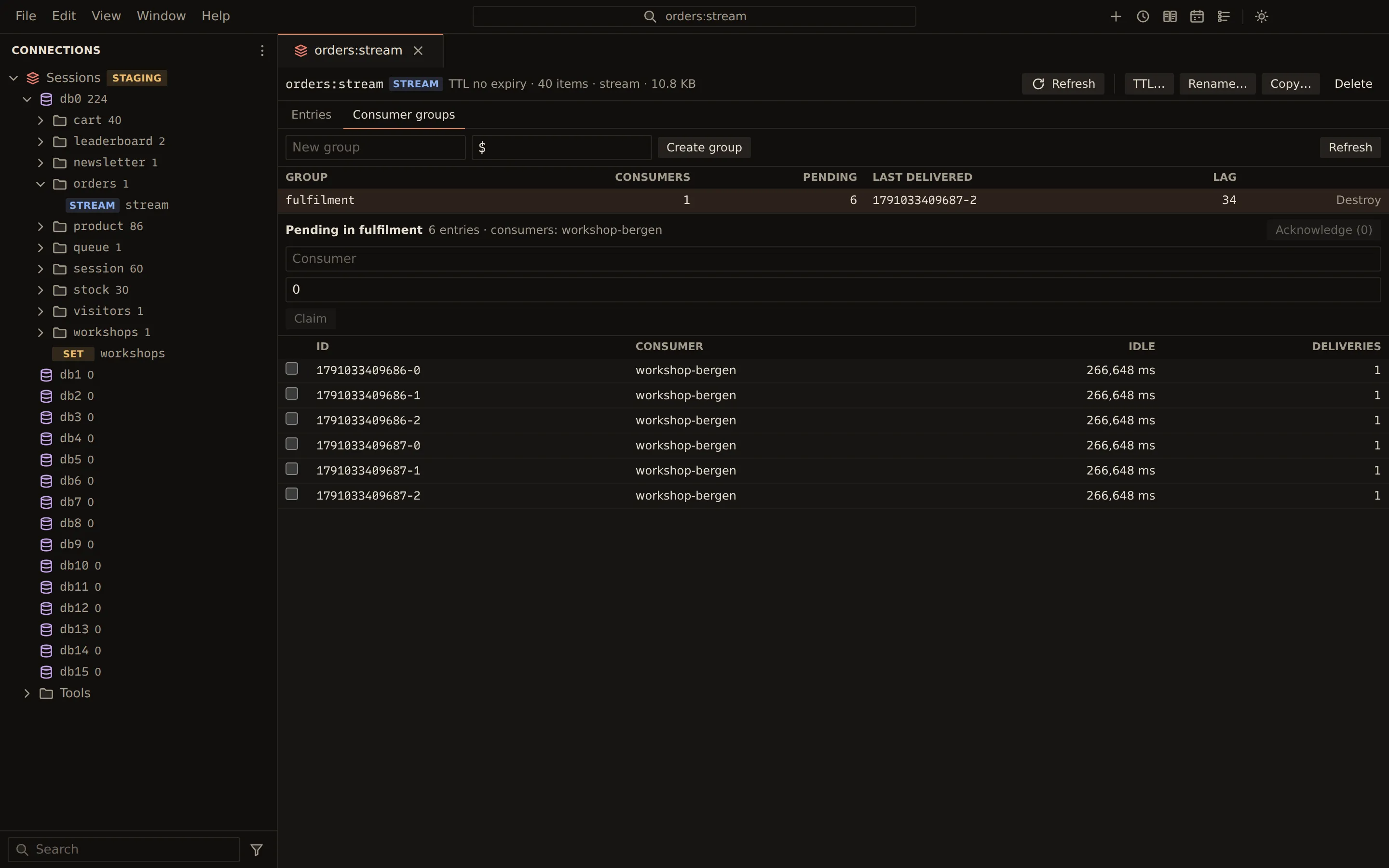
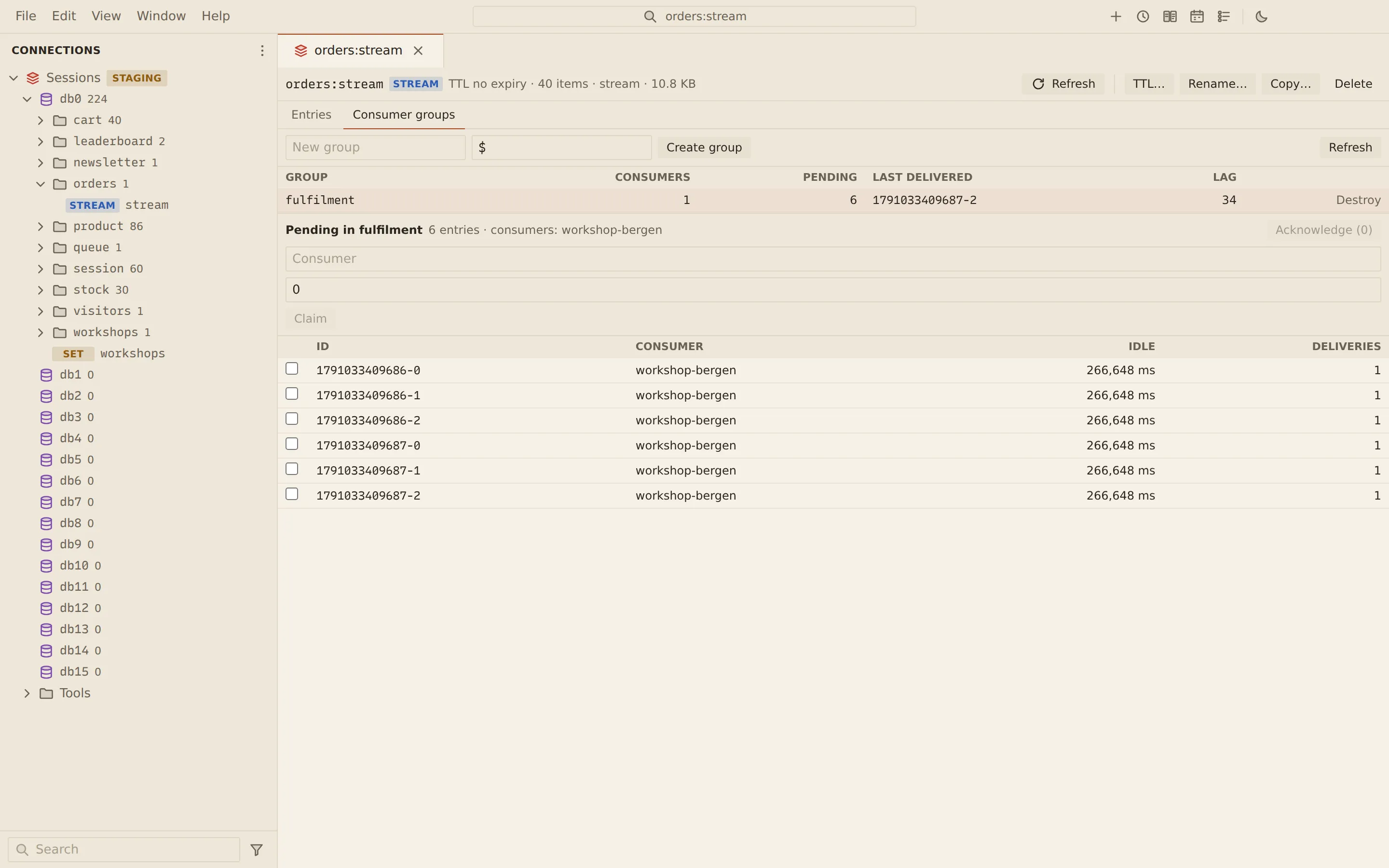
Consumer groups lists the groups with their Consumers, Pending count, Last delivered ID and Lag.
- To create a group, enter a Group name and a start ID (
$for new entries only,0for the whole stream) and choose Create group. - Select a group to see its pending entries, with each entry’s Consumer, Idle time and Deliveries.
- Tick entries and choose Acknowledge to
XACKthem, or enter a consumer and a minimum idle time and choose Claim toXCLAIMthem for that consumer.
Destroy removes a group, after a confirmation.
RedisJSON
Section titled “RedisJSON”A ReJSON-RL key opens as pretty-printed JSON. Enter a JSONPath and choose Go to edit only
the value at that path; Save writes it back with JSON.SET at the same path. Without the
RedisJSON module (Redis Stack, Redis 8 or valkey-json), JSON keys cannot be edited.
Other types
Section titled “Other types”Keys of a type without an editor say so; use the CLI for them.
Related
Section titled “Related”Documents Querybara 0.1.1 · built frombc9f5aa