
Results grid
- PostgreSQL
- MySQL
- MariaDB
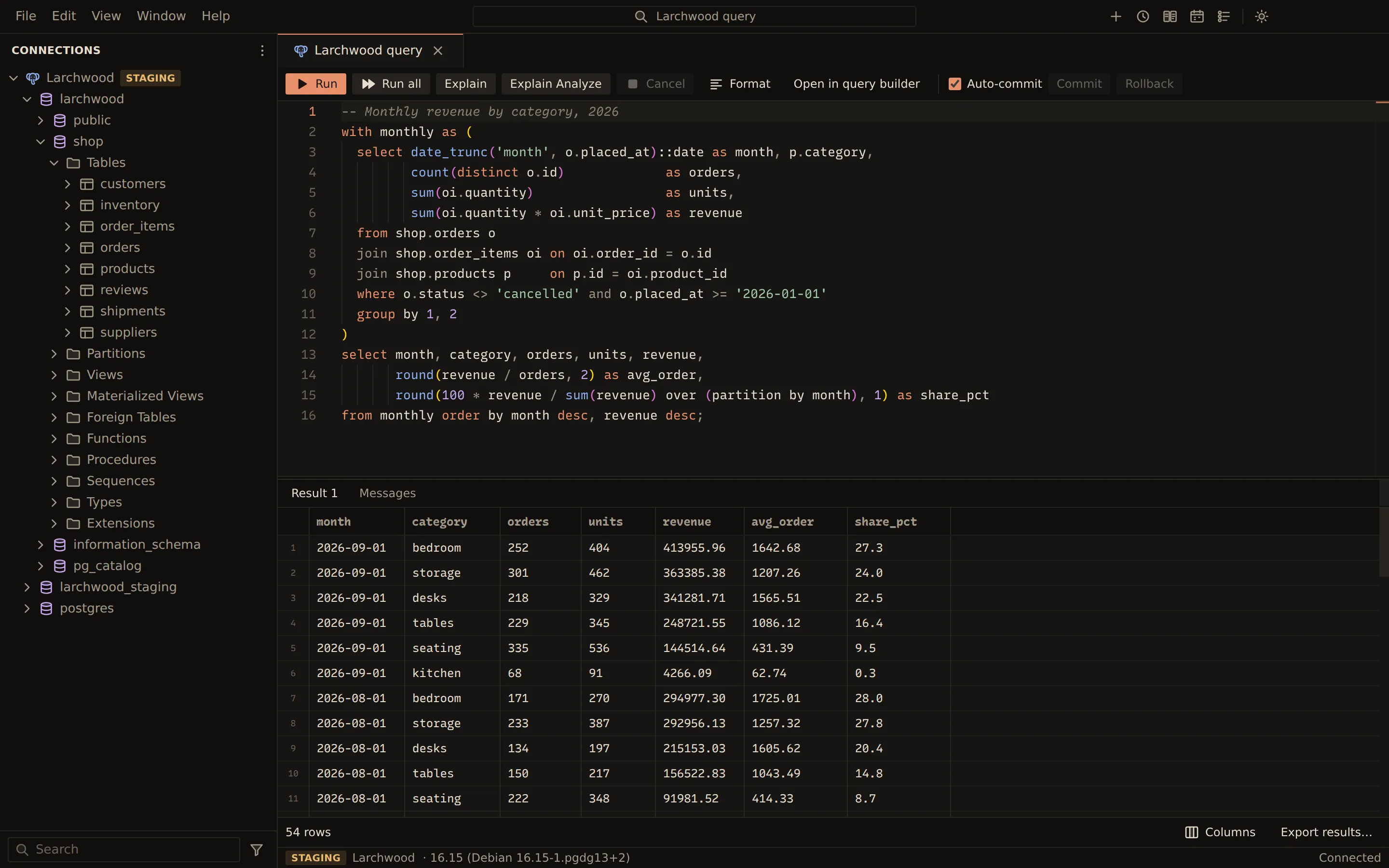
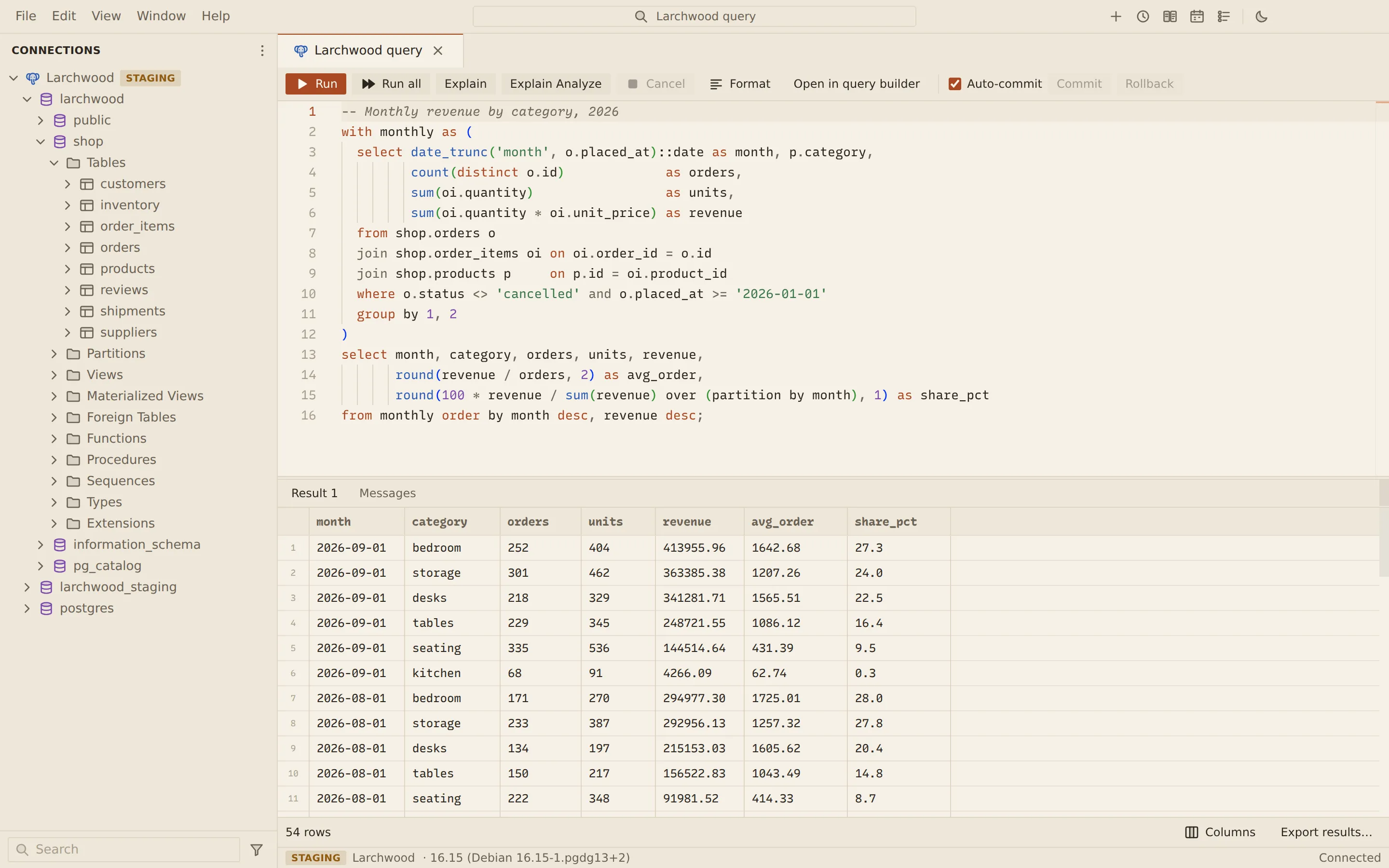
The results of a query tab appear under the editor in a canvas-rendered grid. Rows stream in as the server sends them, straight from the connection’s process to the tab, and the grid reads them from a column-oriented buffer as you scroll. Drag the bar between the editor and the results to resize them.
Result tabs
Section titled “Result tabs”Each result set gets its own tab, named after the statement that produced it: Result 1, Result 2, and so on for a script. A statement that returns several result sets (a MySQL procedure, for example) adds Result 1.2, Result 1.3 and so on. The first result set of a run comes to the front; the others wait in their tabs.
The Messages tab collects, for each statement, the rows returned or affected and the time it took, plus server notices and errors. Its tab shows the number of errors.
When you run Explain, the plan appears in a Plan tab beside them.
Streaming and the row limit
Section titled “Streaming and the row limit”A statement loads up to 1,000 rows at first. The footer under the grid shows how many rows are loaded, and more available when the server has more.
| Button | What it does |
|---|---|
| Fetch more (1,000) | Loads the next 1,000 rows from the same server-side cursor |
| Fetch all | Loads every remaining row |
| Cancel | Stops a fetch in progress |
Only the last statement of a run keeps its cursor open for Fetch more. An earlier statement in a script that reaches the limit stops there; the footer says to run it alone to fetch more.
Arrange the columns
Section titled “Arrange the columns”Column widths start from the first rows. You can change the layout of each result set:
- Drag a column header to move the column.
- Drag the edge of a header to resize it.
- Right-click a header, or use its menu button, for Hide column, Pin column (keeps it at the left while you scroll) and Reset width.
- Choose Columns in the footer to show, hide, pin and reorder every column in one list. Show all brings hidden columns back; Reset columns restores the original order and widths.
Export the results
Section titled “Export the results”- Choose Export results… in the footer of the result set.
- Pick the format and file in the export wizard.
The export runs the statement again in Querybara’s job runner and writes every row to the file, not
only the rows loaded in the grid. The button is not offered for a statement that writes, such as
DELETE … RETURNING, because running it again would write again. See
Export for the formats.
From the command line
Section titled “From the command line”querybara query prints results as a table, or streams them as CSV, TSV, JSON or JSON Lines.
-e "select id, name, city from shop.customers" --format csv > customers.csv--row-limit caps the rows printed per result set (0, the default, prints all).
Related
Section titled “Related”Documents Querybara 0.1.1 · built frombc9f5aa