
Schedules
- PostgreSQL
- MySQL
- MariaDB
- MongoDB
- Redis / Valkey
A schedule runs a backup, a SQL file, an export or a saved comparison by itself, at the times you choose, while Querybara is open. You set a schedule up where you run the job once, and follow every schedule in the Schedules panel. Each run writes a new file, so you can keep a series of nightly backups or exports.
Set up a schedule
Section titled “Set up a schedule”Start from the dialog that runs the job once, and choose Schedule… there instead of running it:
| To schedule | Start from |
|---|---|
| A backup | Back up… on a connection, database or schema; Schedule… on the last step |
| A SQL file | Run SQL file… on a connection or database |
| An export | Export…, Export tables… or Export results…; Schedule… on the Destination step |
| A structure or data compare | Compare › Saved comparisons… in the title bar; Schedule… next to the saved comparison |
Backups can be scheduled on every engine. SQL files, exports and comparisons work on PostgreSQL, MySQL and MariaDB. A comparison must be saved before it can be scheduled, and an export of a query with parameters cannot be scheduled.
- Set up the job as for a single run, then choose Schedule…. The schedule editor opens with a name and what the schedule runs at the top. Click the name to change it.
- Under When, pick how often it runs (see below). Under the rule, the editor says it in words, such as “Weekdays at 07:00”, and lists the next runs.
- Under Each run writes, choose Choose folder… and check the file name (see below). A SQL file schedule writes no file, so it has no such section.
- Under Notify me, pick when you get a desktop notification.
- Choose Schedule.
The schedule is saved, and the Schedules panel opens on it. Untick On in the editor to save a schedule that does not run yet.
When it runs
Section titled “When it runs”| How often | What you set |
|---|---|
| Every… | A number of minutes or hours, from 1 to 10,080 |
| Daily or weekly | The days of the week (every day and weekdays pick them at once) and one or more times (+ Time) |
| Monthly | The days of the month, including Last, and a time |
A new schedule runs every day at 02:00, and a comparison schedule on weekdays at 07:00, until you change it.
- Times are in your computer’s local time. A time that falls in a daylight-saving gap runs at the first minute after it, and a repeated hour runs once.
- Every… counts from when the schedule was made or last ran, so a run every hour stays on the same minute.
- A month without one of the chosen days (31 in April, say) has no run on that day.
- A schedule that is still running when it is due again skips that run.
Missed runs
Section titled “Missed runs”A run more than two minutes late was missed: Querybara was closed, or the computer was asleep. Catch up on a missed run, on by default, runs it once when Querybara is back, however many runs were missed. Untick it to skip missed runs; they are listed in the schedule’s runs as skipped.
The files each run writes
Section titled “The files each run writes”Backups, exports and comparisons write into the folder you chose, under a name made from the Named template:
| Placeholder | Becomes |
|---|---|
{name} |
The schedule’s name, with characters a file name cannot hold replaced |
{date} |
The run’s date as YYYY-MM-DD |
{time} |
The run’s time as HH-MM |
The template starts as {name}-{date}-{time} with the job’s extension, such as .qbak,
.sql.gz or .csv. Click a placeholder under the field to add it; Like shows the next file
name. The name must hold {date} or {time}, so runs do not write over each other, and cannot hold
a folder. A run never overwrites a file: if the name is taken, it adds -2, -3 and so on. An
export that writes a file per table writes a new folder each run.
Keep only the newest deletes older files the schedule wrote, keeping the number you set. It deletes only names its template can produce, in its own folder, and never anything else there.
A comparison schedule writes a file only when the run finds differences: the HTML report for a structure comparison, the sync script for a data comparison. The run’s message counts the differences.
Passwords and passphrases
Section titled “Passwords and passphrases”A scheduled run cannot ask for a password. It needs the connection’s password saved, or typed earlier in the same session. The Schedules panel warns about a schedule whose connection password is not saved, and a run without it fails and says so.
An encrypted backup’s passphrase comes from the backup dialog, or the editor asks for it under Encryption. It is kept in your computer’s secure storage, never with the schedule.
Scheduled runs follow the same write rules as a job you start yourself. A SQL file on a production or confirm-writes connection is confirmed once, when you schedule it.
Notifications
Section titled “Notifications”Under Notify me, pick one:
- When a run fails or finds differences, the default: a run that fails, or a comparison run that finds differences, shows a desktop notification.
- After every run.
- Never.
Clicking a notification brings Querybara to the front. Notifications show where the system supports them.
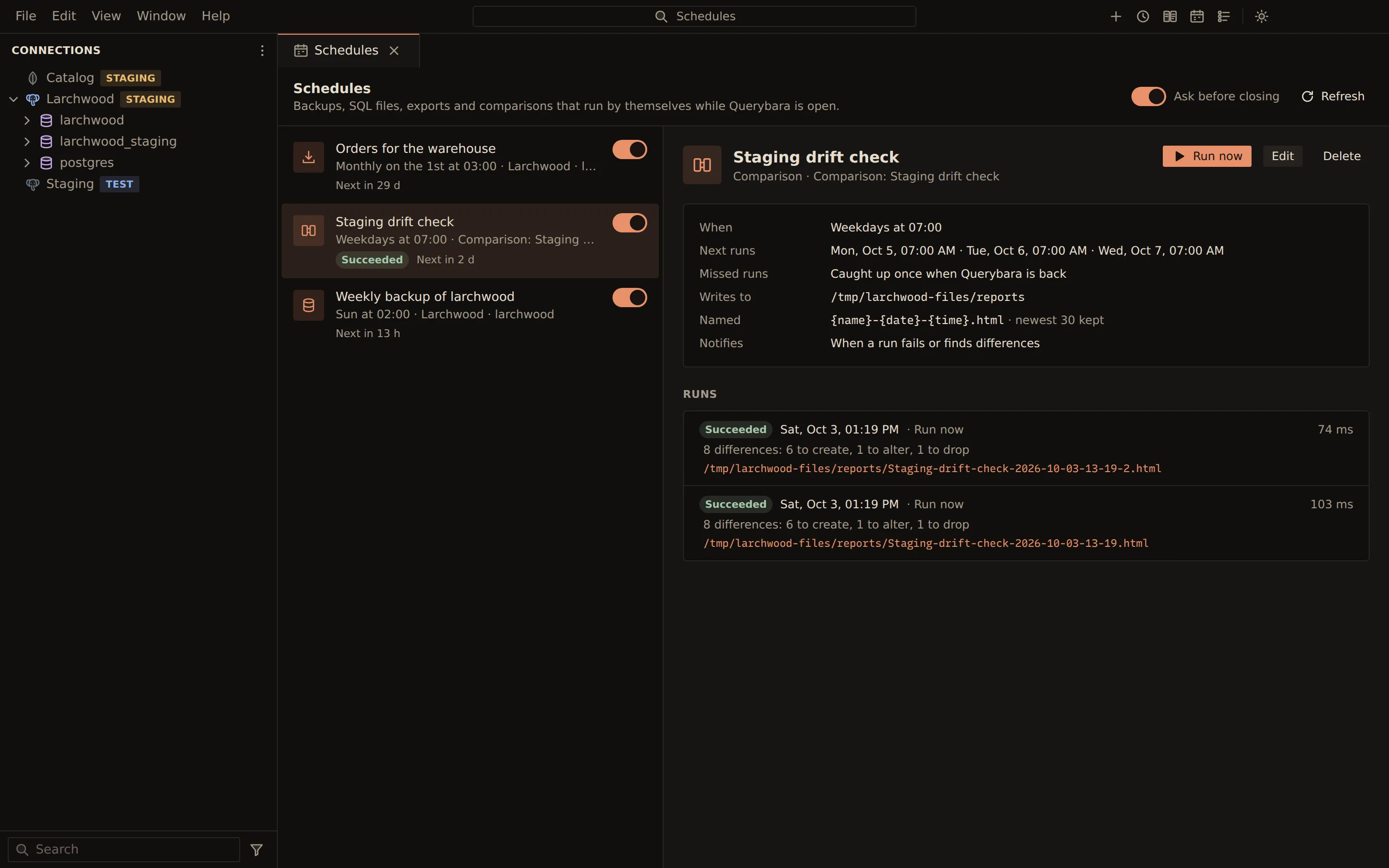
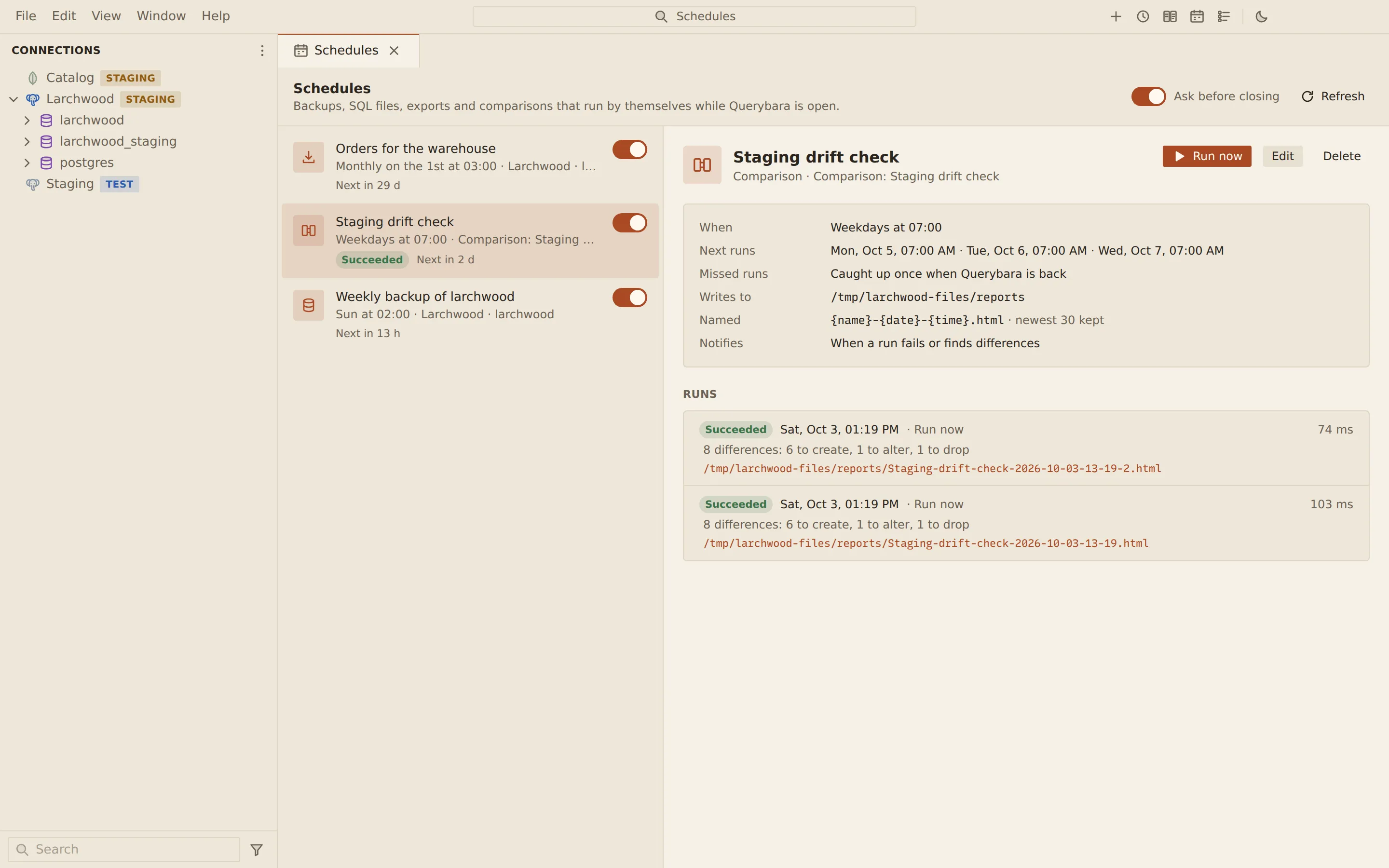
The Schedules panel
Section titled “The Schedules panel”Choose Schedules in the title bar, or run Schedules from the command palette. The palette opens with Ctrl + Shift + P, or with Cmd + Shift + P on macOS.
The list on the left shows each schedule with what it runs and on which connection, how its last run went, when it runs next, and a switch that turns it on or off. A warning mark means a run would fail as things stand, for example because a password is not saved or the connection was deleted.
The selected schedule shows when it runs, its next runs, what happens to missed runs, where it writes, and when it notifies, with:
- Run now, which runs it at once;
- Edit, which opens the schedule editor;
- Delete, which stops it. The files its runs wrote stay where they are.
Under Runs, each run is listed newest first, with its state (Running, Succeeded, Failed, Cancelled or Skipped), when it started, why (On schedule, Caught up or Run now), how long it took, its message, and the files it wrote. Click a file to copy its path.
Each run is also a job in the Jobs panel, where you can follow or cancel it.
Closing Querybara
Section titled “Closing Querybara”Schedules run only while Querybara is open. Closing Querybara while a schedule is on asks first: quitting on every platform, and on Windows and Linux also closing the last window. The question says how many schedules are on, which runs next and when, which runs are going now and will be stopped, and that missed runs are caught up or skipped as each schedule says.
Choose Quit Querybara (Close Querybara on Windows and Linux) or Cancel. Tick Don’t ask again to stop the question; Ask before closing in the Schedules panel turns it back on.
Querybara does not ask when no schedule is on, when the system shuts down, restarts or logs out, or when it restarts to install an update. On macOS, closing the window asks nothing, since Querybara keeps running.
Related
Section titled “Related”Documents Querybara 0.1.1 · built frombc9f5aa