
Tour of the interface
- PostgreSQL
- MySQL
- MariaDB
- MongoDB
- Redis / Valkey
- Elasticsearch
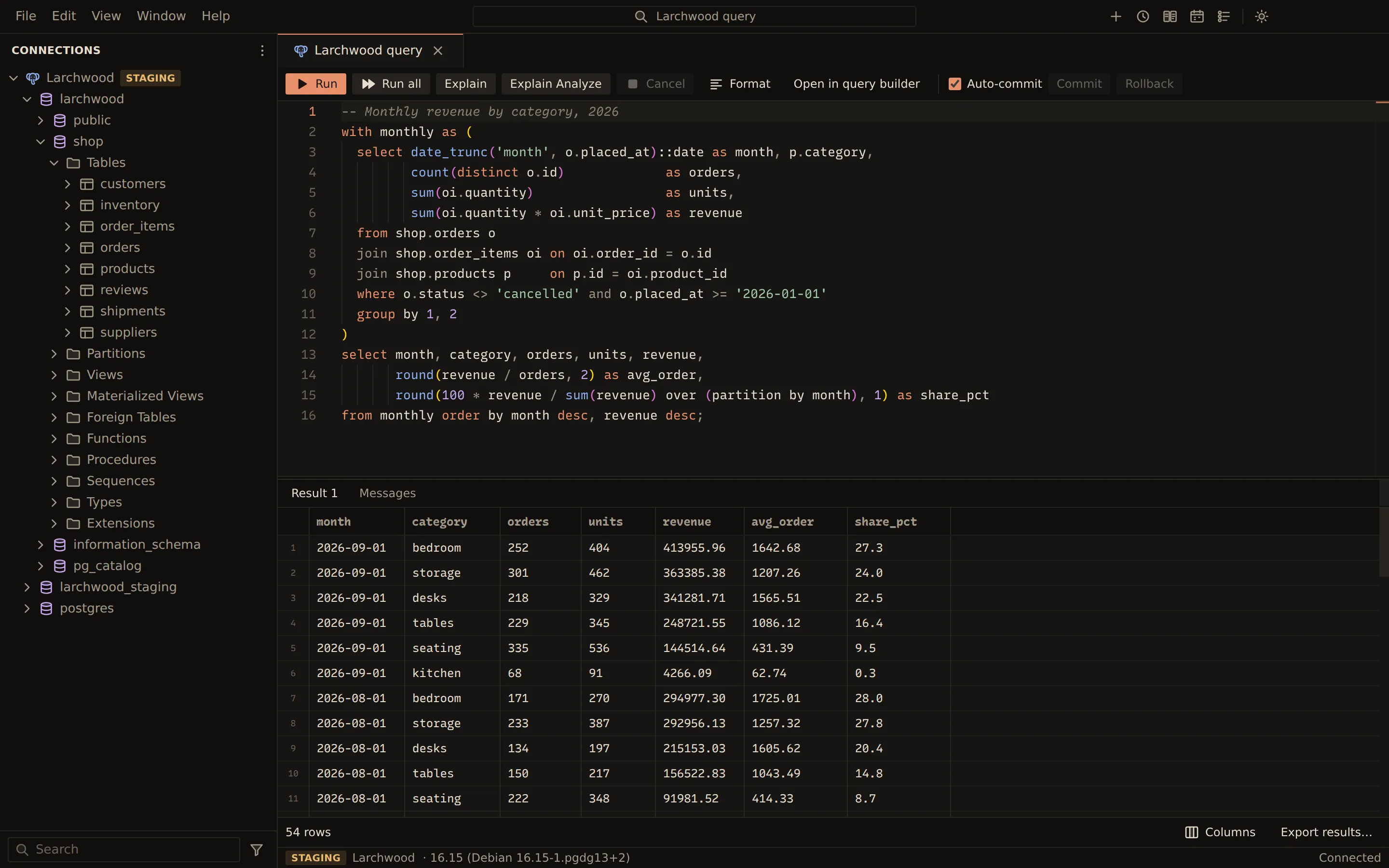
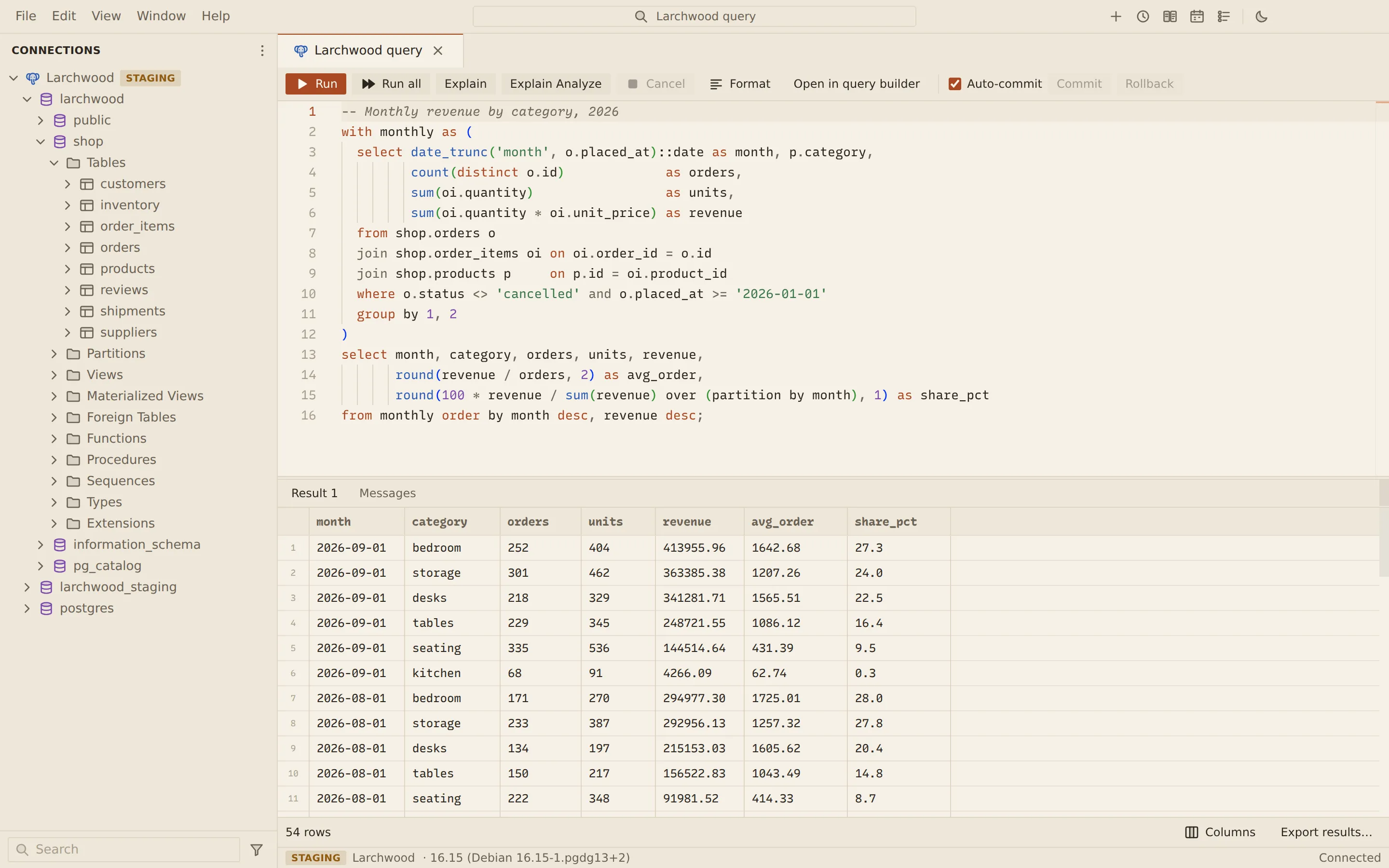
The Querybara window has a title bar across the top, the Connections side bar on the left, the tabs in the middle, and optional panels on the right. It follows the layout of VS Code’s workbench.
Title bar
Section titled “Title bar”Querybara draws its own title bar. On macOS the window’s traffic lights sit at its left; on Windows and Linux the window controls sit at its right, and the application menu (File, Edit, View, Window, Help) sits at its left.
In the middle, a search box shows the active tab’s title. Click it to open Go to Table or Collection. When the active tab belongs to a connection marked Production, the middle shows a red Production banner with the connection’s name instead, and a red frame surrounds the whole window.
At the right are the window’s actions, as icons with tooltips:
| Button | What it does |
|---|---|
| New query | Opens a query tab on the active tab’s connection, or on the first connected one. |
| History | Shows or hides the query history panel. |
| Compare | A menu with Compare structure…, Compare data… and Saved comparisons…. |
| Schedules | Opens the Schedules tab. |
| Jobs | Shows or hides the jobs panel. A count on it shows how many jobs are running. |
| Switch theme | Switches between the dark theme (Tenmoku) and the light theme (Bisque). See Themes. |
Connections side bar
Section titled “Connections side bar”The side bar lists your connections, at the top level or in folders. Each connection shows:
- its engine’s icon, dimmed until the connection is open;
- its own colour, as a dot before the icon, when you set one;
- an environment badge: Dev, Test, Staging or Production;
- RO when the connection is read-only;
- a warning sign when it crosses a network with TLS off or not fully verified (see TLS modes);
- a red dot when the connection failed or was lost; a failed one shows its error under the row.
A click selects a connection. A double-click, or Enter, connects it. While it connects, a small spinner takes the place of the row’s Actions button. Only a connected connection has a chevron; the chevron, a double-click or Enter folds and unfolds its tree.
The header’s menu (Connection actions, at the right of Connections) has New connection, New folder and Close all connections, with the number of open connections. A new folder is named in place: type the name and press Enter.
Search and filter
Section titled “Search and filter”The bottom of the side bar holds the search and the filter:
- Search matches connection and folder names, ignoring case. The match shows in bold, and every folder that shows is open while you search. Esc clears the search.
- Filter connections narrows the list by engine, by environment, and to Connected only. A dot marks the button while a filter is on. Clear the filter removes it.
When nothing matches, the side bar says “No connection matches.” and offers Show all connections. The search and the filter last until Querybara quits.
The object tree
Section titled “The object tree”Under a connected connection, the tree loads as you expand it: databases, schemas and tables for SQL engines, and each engine’s own objects for MongoDB, Redis and Elasticsearch.
On PostgreSQL, MySQL, MariaDB and MongoDB connections:
- A click on a table, a view or a collection opens it: a table’s rows in the data view, a view’s rows in a query tab, a collection in the collection view. An open one comes forward. Its chevron expands its columns and indexes.
- A click on a database, a schema or a folder expands it and lists what it holds in the Objects tab. Its chevron only expands it.
Right-click a row, or hover it and choose the Actions button, to open its menu.
- A connected SQL connection offers, among others, New query tab, Run SQL file…, New query builder, ER diagram, Server tools, Transfer data to…, Refresh objects and Disconnect. A connection that is not open offers Connect.
- Every connection offers Edit…, Duplicate…, Move to folder and Delete. Move to folder lists Top level, each folder (the current one ticked) and New folder, which makes a folder and moves the connection into it.
- A folder offers New connection here, Rename and Delete folder.
- A table offers Open data, Design table, Import data…, Export… and more.
The tree works with the keyboard: arrow keys move, expand and collapse, Enter opens. See Keyboard shortcuts.
Query tabs, table data views, table designers, query builders, ER diagrams, the Objects tab and the MongoDB, Redis and Elasticsearch tools all open as tabs. A tab on a connection carries its engine’s icon. Drag a tab to rearrange it or to split the area. Middle-click a tab, or choose its close button, to close it.
Tab headers carry small markers:
| Marker | Meaning |
|---|---|
| a pulsing dot | A query or operation is running. |
| TX | A transaction is open in this query tab. |
| a filled circle | Unsaved changes: staged edits, an unsaved design or value. |
| restored | The tab was reopened from its autosave. Click the marker to dismiss it. |
Querybara asks before it closes a tab with an open transaction or with unsaved changes.
With no tabs open, the area shows “No query tabs open”.
A query tab
Section titled “A query tab”A query tab has a toolbar (Run, Run all, Explain, Explain Analyze, Cancel, Format, Open in query builder, Auto-commit, Commit, Rollback), the editor, and the results below it. Drag the bar between editor and results to resize them. Results appear as one tab per result set, a Plan tab after an explain, and Messages. The status bar at the bottom shows the connection’s environment, name, server version and status.
See Query editor for the details.
Panels
Section titled “Panels”History opens on the right with the runs of your queries and a search box. Jobs opens there too, with the progress of imports, exports, transfers, backups and other jobs.
Themes
Section titled “Themes”Querybara has two themes from the Kiln design system: Tenmoku, the dark one, and Bisque, the light one. It starts in Tenmoku. To switch, choose the theme button at the right of the title bar (its tooltip says “Switch to Bisque (light)” or “Switch to Tenmoku (dark)”), run Preferences: Toggle Light/Dark Theme from the command palette, or press Cmd + K then Cmd + T (Ctrl + K then Ctrl + T on Windows and Linux). Querybara keeps the choice. The editors, grids and tabs follow the theme, and code is set in Rec Mono Duotone.
The application menu has the standard Edit, View and Window menus. View holds Command Palette…, Go to Table or Collection… and Keyboard Shortcuts, then zoom and full screen. The Help menu has Release Notes, Check for Updates… and About Querybara; on macOS the last two are in the Querybara menu.
On Windows and Linux, the window’s Close is Ctrl + Shift + W, so that Ctrl + W closes the active tab.
Related
Section titled “Related”Documents Querybara 0.1.1 · built frombc9f5aa