
Connection profiles
- PostgreSQL
- MySQL
- MariaDB
- MongoDB
- Redis / Valkey
- Elasticsearch
- CLI
A connection profile is a saved connection: the engine, how to reach the server, how to sign
in, TLS, an optional SSH tunnel or proxy, and how the connection is labelled and guarded. The
desktop app and the querybara command-line tool share the same profiles.
Create a connection
Section titled “Create a connection”- Open the New connection dialog: in the Connections side bar, open the header’s menu (Connection actions) and choose New connection, or press Cmd + Shift + N (Ctrl + Shift + N on Windows and Linux). A folder’s menu has New connection here, which puts the new connection in that folder.
- Under Choose a database, pick the engine’s card and choose Next (or double-click the card, or press Enter). To start from a URI instead, paste it into Paste a URI to fill the form and choose Fill from URI.
- Fill in the tabs, described below. Back returns to the engines and keeps what you typed.
- Choose Test Connection to check it, then Save.
| Tab | What it holds |
|---|---|
| General | Name, Connect with and the endpoint, the sign-in and its storage, Environment and Folder. |
| Advanced | MongoDB’s and Redis’s options, the write guards under Safety, and the Colour under Appearance. |
| TLS | TLS mode and the certificate files. See TLS modes. |
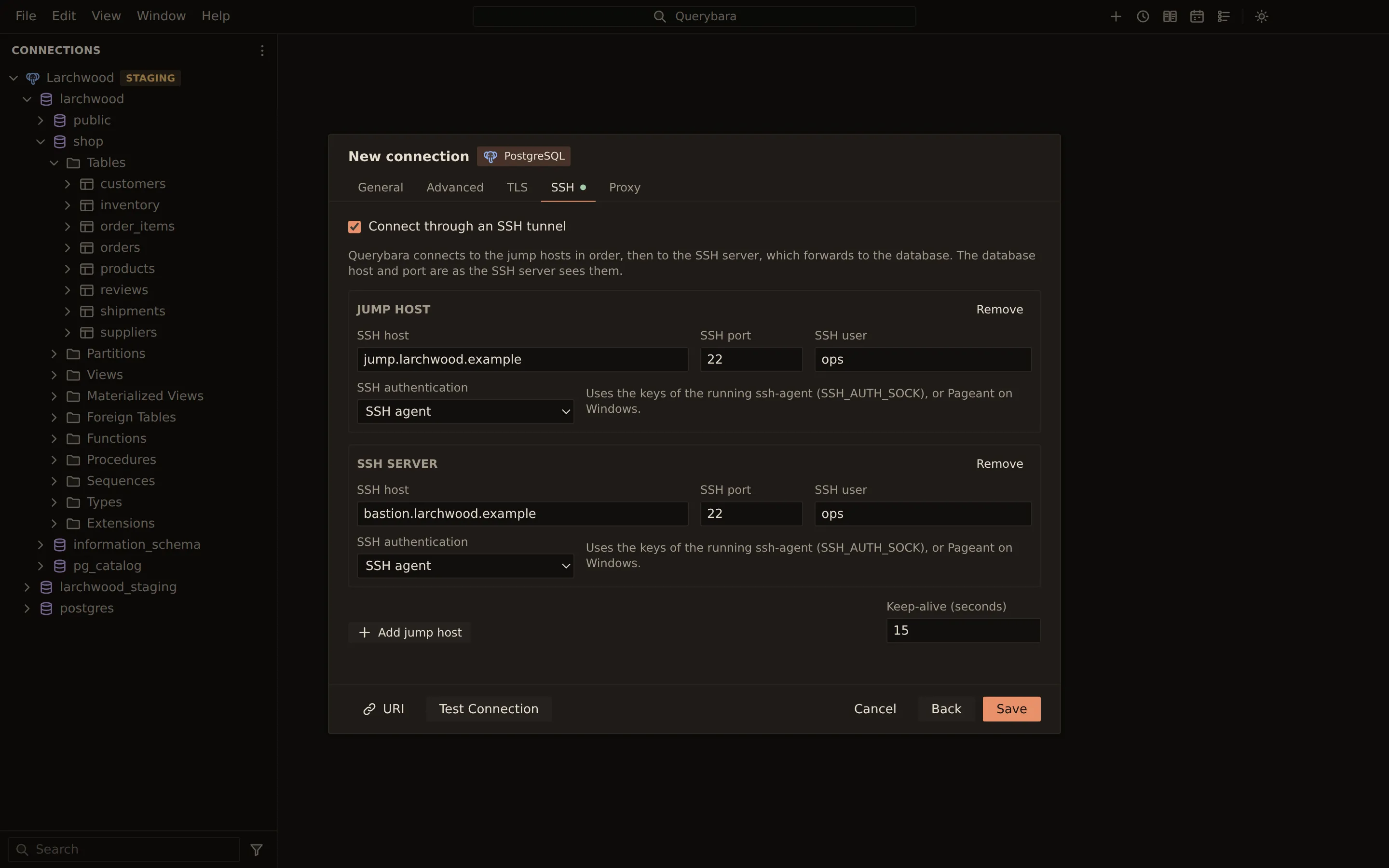
| SSH | Connect through an SSH tunnel, with its jump hosts. See SSH tunnels. |
| Proxy | Proxy type: No proxy, SOCKS5 or HTTP (CONNECT). See Proxies. |
A tab that holds a missing or wrong value shows a red dot; Save and Test Connection open the first such tab and put the cursor in the field. TLS, SSH and Proxy show a green dot while they are on. The URI button at the bottom shows the paste box on General again.
Edit, duplicate or delete
Section titled “Edit, duplicate or delete”Open the connection’s actions menu in the side bar (right-click it, or hover it and choose Actions):
- Edit… opens the dialog titled Edit and the connection’s name, on its tabs. An empty password field keeps the stored password (“Leave empty to keep the stored password”).
- Duplicate… opens a copy named after the original with “(copy)”.
- Delete removes the connection, its saved passwords and its query history, after a confirmation.
Editing and duplicating skip the engine step. Connection: Edit Connection… in the command palette asks which connection to edit.
Endpoints
Section titled “Endpoints”Connect with on the General tab lists the endpoint forms the engine accepts.
| Connect with | Fields | Engines |
|---|---|---|
| Host and port | Host, Port (localhost and the engine’s default port to start) |
PostgreSQL, MySQL, MariaDB, MongoDB, Redis |
| Unix socket | Socket path | PostgreSQL, MySQL, MariaDB, Redis |
| Connection URI | URI (without the password) | PostgreSQL, MySQL, MariaDB, MongoDB, Redis |
| Host list (replica set) | Hosts, optional Replica set | MongoDB |
| SRV record (mongodb+srv) | SRV host name | MongoDB |
| Sentinel | Sentinels, Master name | Redis |
| Cluster | Seed nodes | Redis |
| Node URLs | Node URLs, optional sniffing | Elasticsearch |
| Cloud ID (Elastic Cloud) | Cloud ID | Elasticsearch |
The default ports are 5432 for PostgreSQL, 3306 for MySQL and MariaDB, 27017 for MongoDB, 6379
for Redis (26379 for a Sentinel) and 9200 for Elasticsearch. A new Elasticsearch connection
starts with the node URL http://localhost:9200.
A Connection URI endpoint stores the URI without its password. Type the password in the Password field, where it is kept like any other password. To turn a URI into separate fields instead, paste it into Paste a URI to fill the form and choose Fill from URI; see Import and export.
A Unix socket cannot go through an SSH tunnel or a proxy.
Sign-in
Section titled “Sign-in”The sign-in fields are on the General tab.
| Engine | Fields |
|---|---|
| PostgreSQL, MySQL, MariaDB | Database (optional), User, Password |
| MongoDB | Authentication: None, User and password (with a Mechanism and an Authentication database) or X.509 client certificate |
| Redis | Authentication: None or Password (optional ACL user) |
| Elasticsearch | Authentication: None, User and password (basic), API key or Bearer token |
MongoDB, Redis and Elasticsearch start with None. The MongoDB mechanisms are
SCRAM-SHA-256, SCRAM-SHA-1, LDAP (PLAIN) and Negotiate with the server. The
Authentication database is where the user is defined; left empty, it is admin, and LDAP
users are always in $external. The engine sections cover these fields in detail:
MongoDB and Elasticsearch.
Every secret (a password, an API key, a token) has its own storage choice. See Passwords and keychain.
Engine options
Section titled “Engine options”MongoDB and Redis have options on the Advanced tab:
| Engine | Options |
|---|---|
| MongoDB | Default database, Read preference, and Direct connection (with Host and port only) |
| Redis | Database number (not for Cluster) and Key delimiter, which splits key names into the key browser’s tree |
With a Connection URI endpoint, MongoDB takes the default database and read preference from the URI.
Environment, folder and colour
Section titled “Environment, folder and colour”| Field | Tab | What it does |
|---|---|---|
| Environment | General | Development, Test, Staging or Production. The side bar and the query tab’s status bar show it as a badge. |
| Folder | General | The side bar folder the connection sits in, or (none) for the top level. |
| Colour | Advanced | A colour of your choice, shown as a dot before the connection’s engine icon in the side bar. Clear removes it. |
The environment badges are green for Dev, blue for Test, amber for Staging and red for Production.
Write guards
Section titled “Write guards”The write guards are under Safety on the Advanced tab.
| Option | What it does |
|---|---|
| Read-only | Querybara refuses every write on this connection, whatever the tab runs. The side bar marks it RO. |
| Confirm every write | Querybara asks before running a statement that changes data or structure. Always on for production. |
When the active tab belongs to a Production connection, a red frame surrounds the window and the title bar shows a Production banner with the connection’s name. Writes ask for confirmation first; in a query tab the dialog is titled “Run on a production connection?”.
Folders
Section titled “Folders”- New folder in the side bar header’s menu adds a folder and lets you name it in place.
- A connection’s Move to folder lists Top level, each folder (the current one ticked), and New folder, which makes a folder and moves the connection into it.
- A folder’s menu has New connection here, Rename and Delete folder. Deleting a folder moves its connections up to the top level.
The side bar’s search matches folder names too. See Tour of the interface.
From the command line
Section titled “From the command line”querybara profiles manages the same profiles:
querybara profiles listquerybara profiles show shop-devquerybara profiles add shop-prod "postgres://[email protected]:5432/shop?sslmode=verify-full" --environment production --folder Shopquerybara profiles remove shop-devprofiles add also takes --confirm-writes, --tls <mode>, --password-policy and --tag.
Without --tls, the profile uses the TLS the URI states, or none. See
querybara profiles.
Related
Section titled “Related”Documents Querybara 0.1.1 · built frombc9f5aa