
ER model editing
- PostgreSQL
- MySQL
- MariaDB
Edit model turns an ER diagram into a designer. You add and rename
tables, columns, keys and relationships on the canvas and in the side panel, with undo and redo.
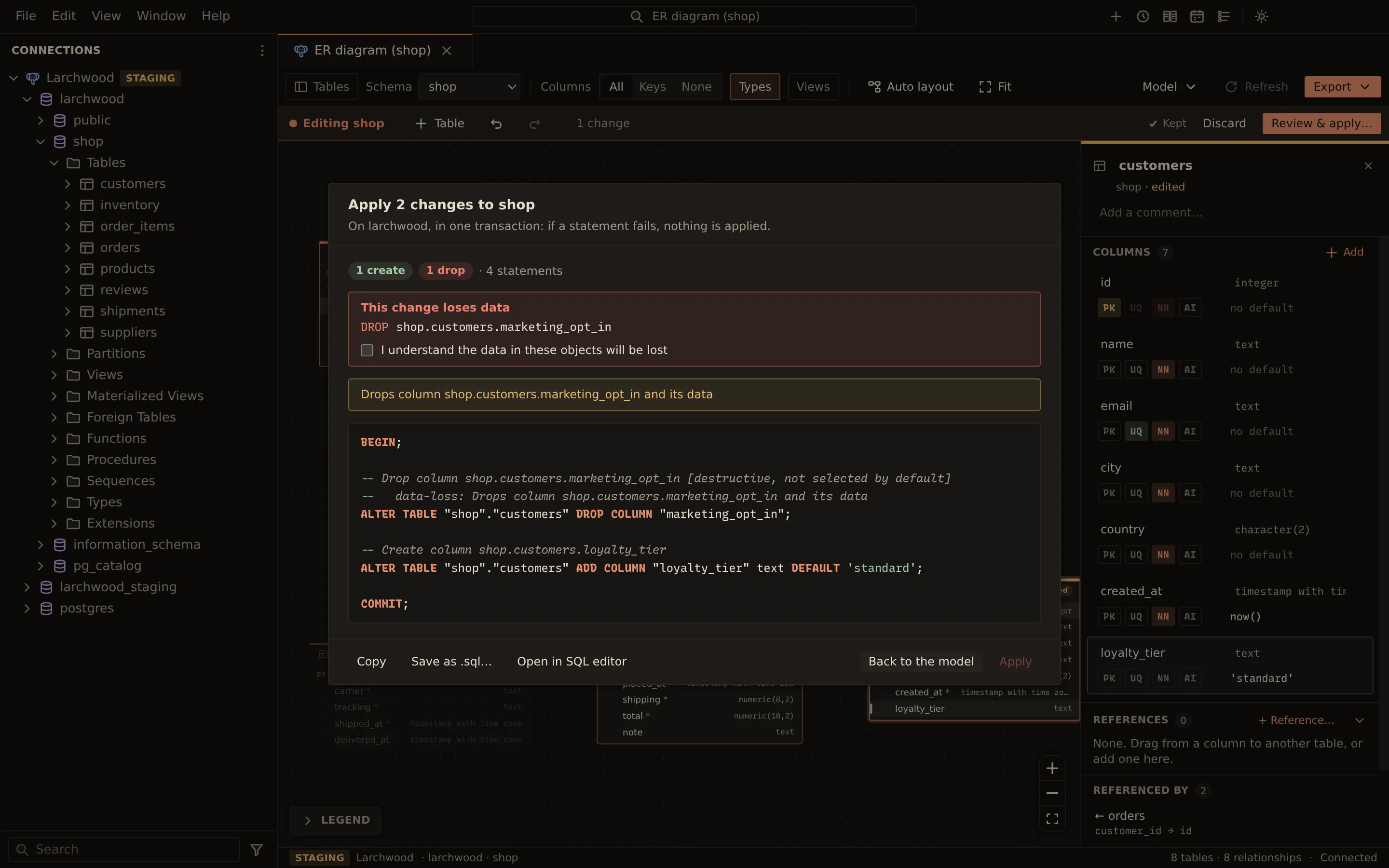
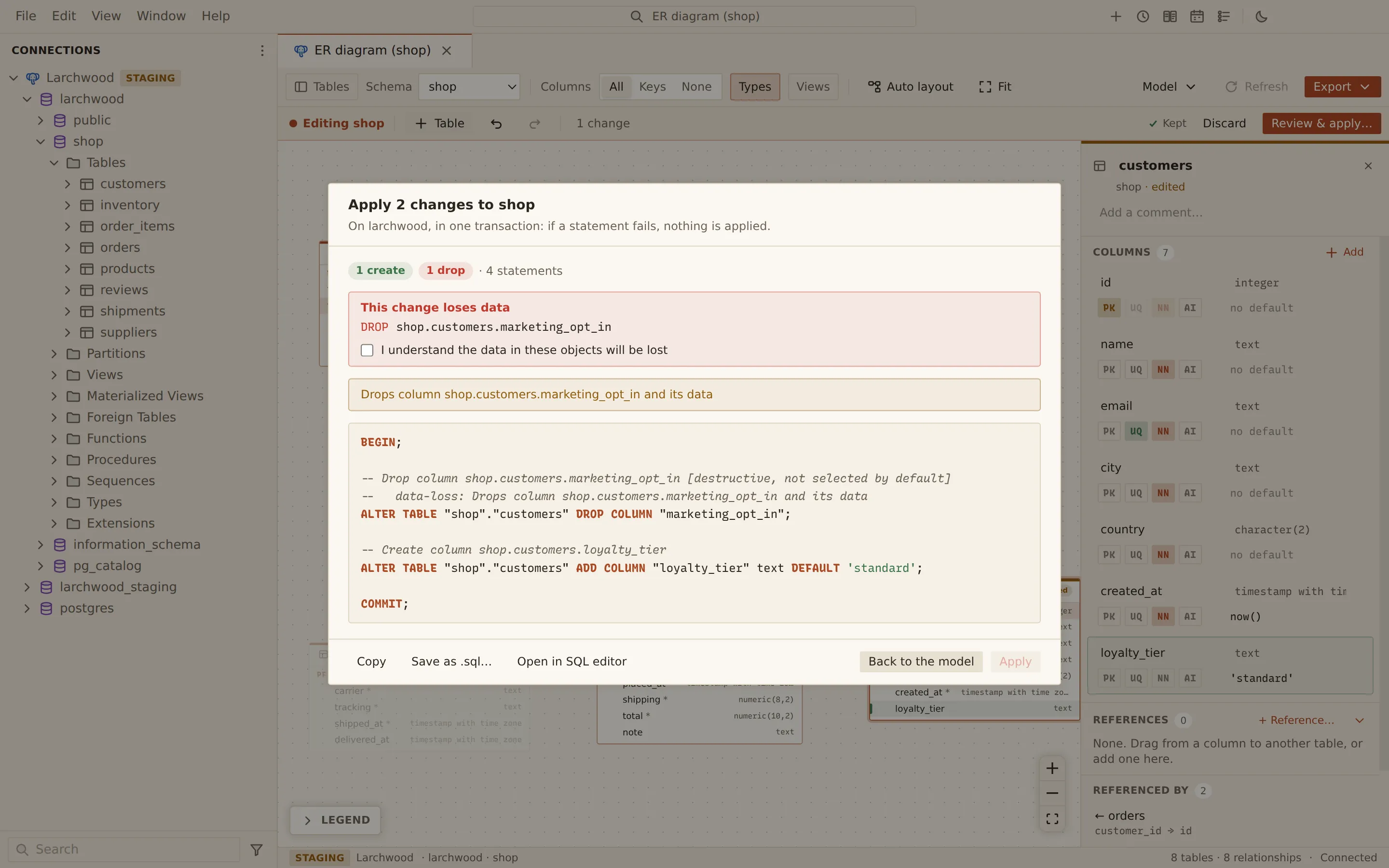
Nothing touches the database until you choose Review & apply…, which shows the exact
CREATE and ALTER script. It works for a new design in an empty schema and for changes to an
existing one. Your unapplied changes are kept as you work, and a model can be saved to a file;
see Saved ER models.
Start editing
Section titled “Start editing”- Open an ER diagram of the database (MySQL, MariaDB) or schema (PostgreSQL) you want to change. On PostgreSQL, pick one schema in the Schema picker first.
- Choose Edit model in the toolbar.
The edit bar reads “Editing” and the schema name, and counts your changes. Edit model is not available on a read-only connection.
In a database or schema with no tables, the empty diagram offers Design tables, which starts editing with a new table. To start from a model you saved, choose Model in the toolbar, then Open model file… (see Saved ER models).
Edit tables and columns
Section titled “Edit tables and columns”| To | Do this |
|---|---|
| Add a table | Choose Table in the edit bar, or double-click the empty canvas |
| Rename a table | Select it and change its name in the side panel |
| Add a column | Choose Add in the table’s Columns, or right-click the box and choose Add column |
| Change a column | Edit its name, type and default in the side panel; toggle PK, UQ, NN and AI |
| Move a column | Use the up and down buttons next to it |
| Delete a column | Use the delete button next to it |
| Delete a table | Choose Delete table in the side panel or the box’s right-click menu |
A new table starts with an id bigint key, an identity column on PostgreSQL and
AUTO_INCREMENT on MySQL and MariaDB. AI sets the identity or AUTO_INCREMENT. The type
field suggests types from the table designer’s type list. The side panel also edits the table
comment.
While you edit, move a box by dragging its header. New and changed tables and columns are marked, and a table with errors shows how many. The change count in the edit bar opens a list of the tables you changed.
Add relationships
Section titled “Add relationships”- Drag from a column to a column of another table to add a foreign key between them. Drop on a table’s box instead of a row to reference its key.
- From the side panel, choose a table in Add a reference from …. Querybara adds the
referencing column, named after the referenced table in the singular (
customer_idforcustomers), with the type of its key. The column isNOT NULLin a new table and nullable in an existing one.
Click a relationship line to select it, and press Delete to remove a selected
relationship or table. The relationship panel sets ON DELETE and
ON UPDATE and has Delete relationship. Whether the referenced table is required follows
NOT NULL on the referencing columns; one to one follows a unique key on them.
Renaming or deleting a column or table carries through to the keys, indexes and foreign keys that use it, in every schema.
Undo, redo and discard
Section titled “Undo, redo and discard”Use the undo and redo buttons in the edit bar, or these keys outside a text field. On macOS, use Cmd in place of Ctrl.
- Undo: Ctrl + Z
- Redo: Ctrl + Shift + Z or Ctrl + Y
Text fields keep their own undo. Discard asks first, then drops every change; the database is not touched.
Changes are kept as you make them: the edit bar shows Kept once they are stored. Closing the diagram tab, or Querybara, does not lose them, and the diagram opens in edit mode again next time. See Saved ER models.
If the schema changes on the server while you edit, the edit bar shows Changed on the server since you started. The model is not reloaded; the script still changes only what the model changes.
Review and apply
Section titled “Review and apply”- Choose Review & apply… in the edit bar.
- Read the counts (create, alter, rename, drop), the problems, the warnings and the script.
- If a change loses data, the dialog lists it under This change loses data. Tick I understand the data in these objects will be lost to continue.
- Choose Apply.
The script comes from the same engine as structure sync and
the table designer: statements in dependency order, the engine’s own
syntax, and destructive steps flagged. Renames stay renames: a renamed column is written as
RENAME COLUMN (or CHANGE COLUMN on MySQL and MariaDB), not as a drop and an add.
ALTER TABLE "shop"."customers" RENAME COLUMN "name" TO "full_name"Problems the table designer would report block the apply until you fix them. On PostgreSQL the script runs in one transaction; if a statement fails, nothing is applied. MySQL and MariaDB commit each DDL statement, so if one fails, the ones before it stay applied.
Apply runs the script with the same write-safety checks as every write in Querybara, so a DROP
can ask once more, and a production connection asks before it writes. On success the edit bar
closes, the kept changes are removed, and the diagram reloads from the server.
Instead of applying, you can:
- Copy the script.
- Save as .sql… to keep it as a file.
- Open in SQL editor to edit or run it in a new query tab.
- Back to the model to keep editing.
To keep the model itself, choose Model → Save as model file… in the toolbar. The file opens on another database or schema, to review and apply there; see Saved ER models.
What the model does not edit
Section titled “What the model does not edit”The model keeps indexes, checks, triggers, partitions and table options as they are; edit those in the table designer, which you can open from the diagram outside edit mode. Views are not edited. New relationships are drawn within the edited schema; existing ones to tables in other schemas stay as they are and can be deleted.
Related
Section titled “Related”Documents Querybara 0.1.1 · built frombc9f5aa