
Key browser
- Redis / Valkey
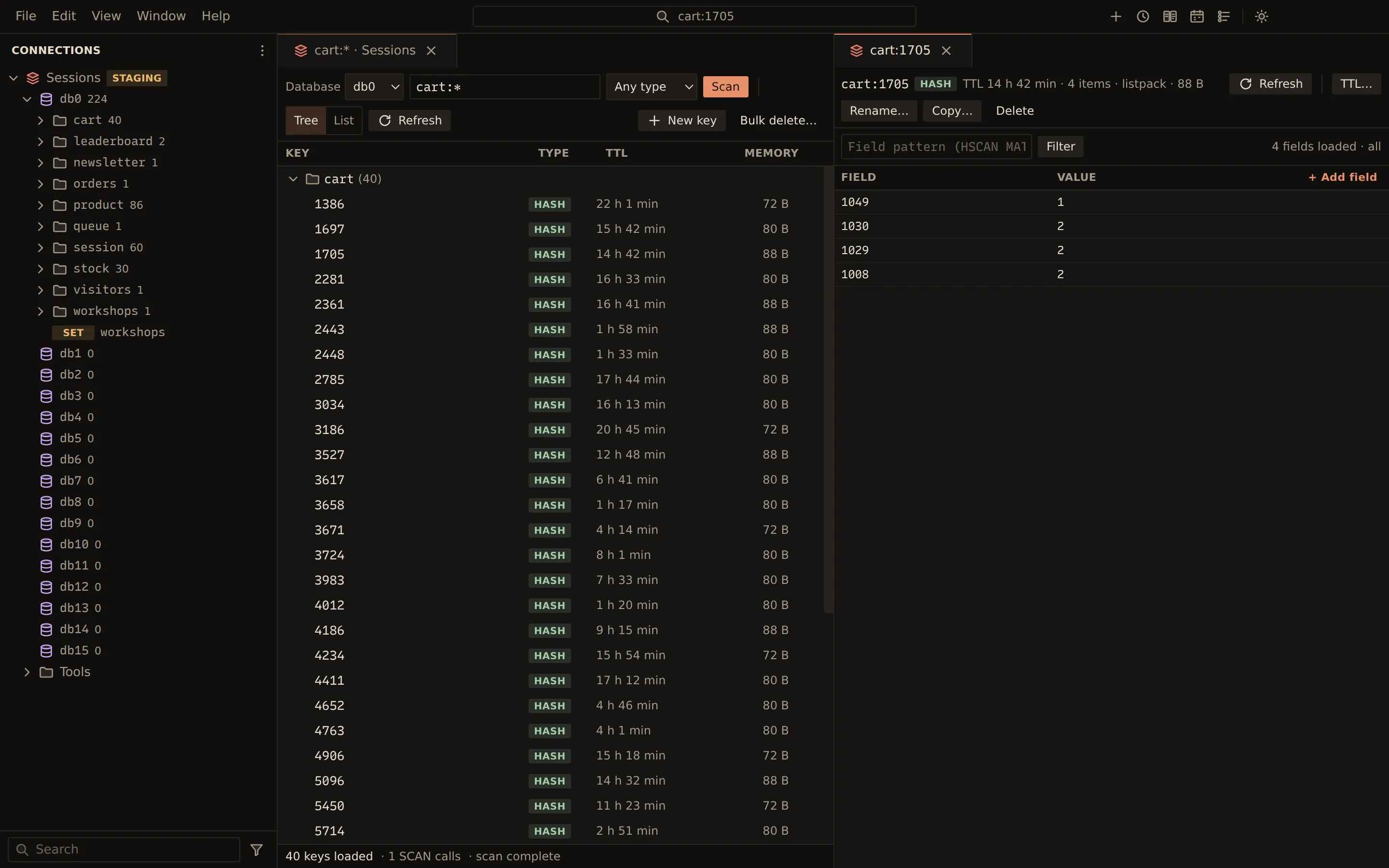
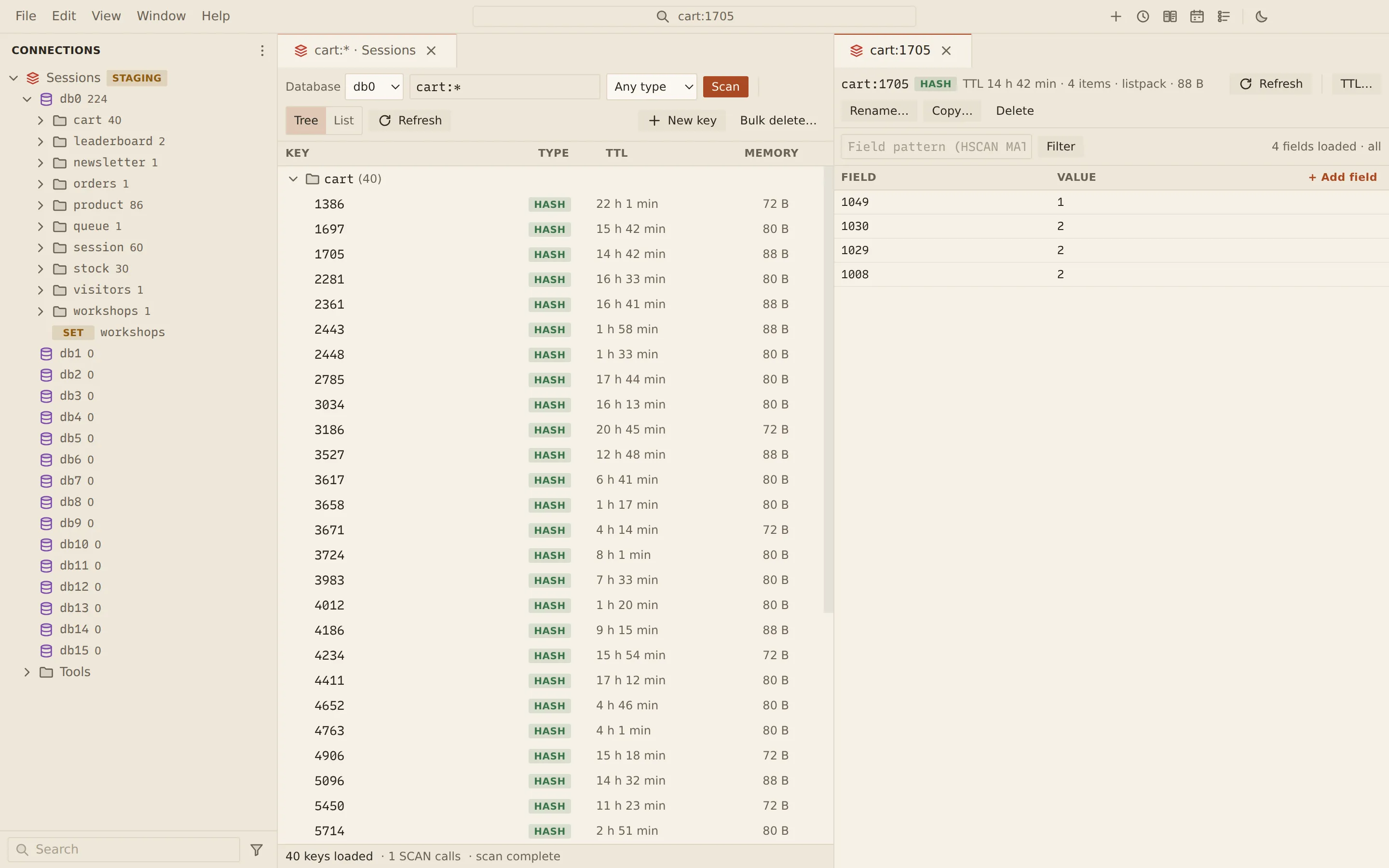
The key browser lists keys with SCAN, never KEYS, so it is safe on a large or busy server. Keys
appear as a namespace tree split on the connection’s key delimiter, or as a flat list, with their
type, TTL and memory size. You can filter by pattern and type, and in Cluster mode the browser
scans every primary or one node.
The tree in the side bar
Section titled “The tree in the side bar”Under a Redis connection, the side bar lists the logical databases (db0, db1, …) with their key
counts; in Cluster mode the primaries take their place. Expand a database to walk its namespaces,
loaded a level at a time, down to keys with a type badge such as HASH or ZSET. A count
marked ≥ means the scan of that level was cut short.
- Double-click a database or a namespace, or choose Browse keys from its menu, to open the key browser filtered to it.
- Click a key, or choose Open value, to open its value editor.
- Delete key… on a key deletes it after a confirmation.
- Transfer keys to… on a database or namespace copies its keys to another connection; see Data transfer.
- Open CLI here on a database opens the CLI on that database.
- Back up keys… and, on a database, Restore keys… open Backup and restore.
- The Tools folder at the end holds the connection’s tools: Keys, CLI, Pub/Sub, the server tools and Search indexes (see Search indexes), and last Dump analysis (see Dump analysis). A click on a tool opens it.
Browse and filter keys
Section titled “Browse and filter keys”- Open the key browser from the tree, or with Tools › Keys.
- Enter a Key pattern, such as
session:*, and pick a Key type: Any type,string,hash,list,set,zset,streamorReJSON-RL. - Choose Scan.
- Switch between the Tree and List views.
- Choose Load more to continue the scan.
| Column | Shows |
|---|---|
| Key | The key name (or the namespace in the tree view). |
| Type | The key’s type. |
| TTL | The time left before it expires, or no expiry. |
| Memory | The key’s size from MEMORY USAGE. |
Memory sizes are read lazily: only for the rows on screen, as they scroll into view.
The footer shows how many keys are loaded and how many SCAN calls it took, and says “scan
complete” when the whole keyspace was read.
Select a key and press Enter to open it, or Delete to delete it after a confirmation. Refresh scans again from the start.
Databases and Cluster nodes
Section titled “Databases and Cluster nodes”- On a standalone or Sentinel connection, Database switches between
db0,db1and so on. - In Cluster mode, Node picks All primaries (the default, scanning every primary) or one node.
Create a key
Section titled “Create a key”Choose New key, then enter the Key name (\xNN escapes enter any byte), pick its Type,
fill in its first value and, optionally, TTL in seconds (optional). Choose Create. The types
are String, Hash, List, Set, Sorted set, Stream and, on servers with the
RedisJSON module, JSON (RedisJSON).
Delete keys in bulk
Section titled “Delete keys in bulk”Bulk delete… deletes every key that matches a pattern after a dry-run count. See Keys: TTL, rename, copy and bulk delete.
The key browser filters by SCAN pattern and type. To query hashes and JSON documents by their
contents, use a search index; see Search indexes.
Related
Section titled “Related”Documents Querybara 0.1.1 · built frombc9f5aa