
Documents
- Elasticsearch
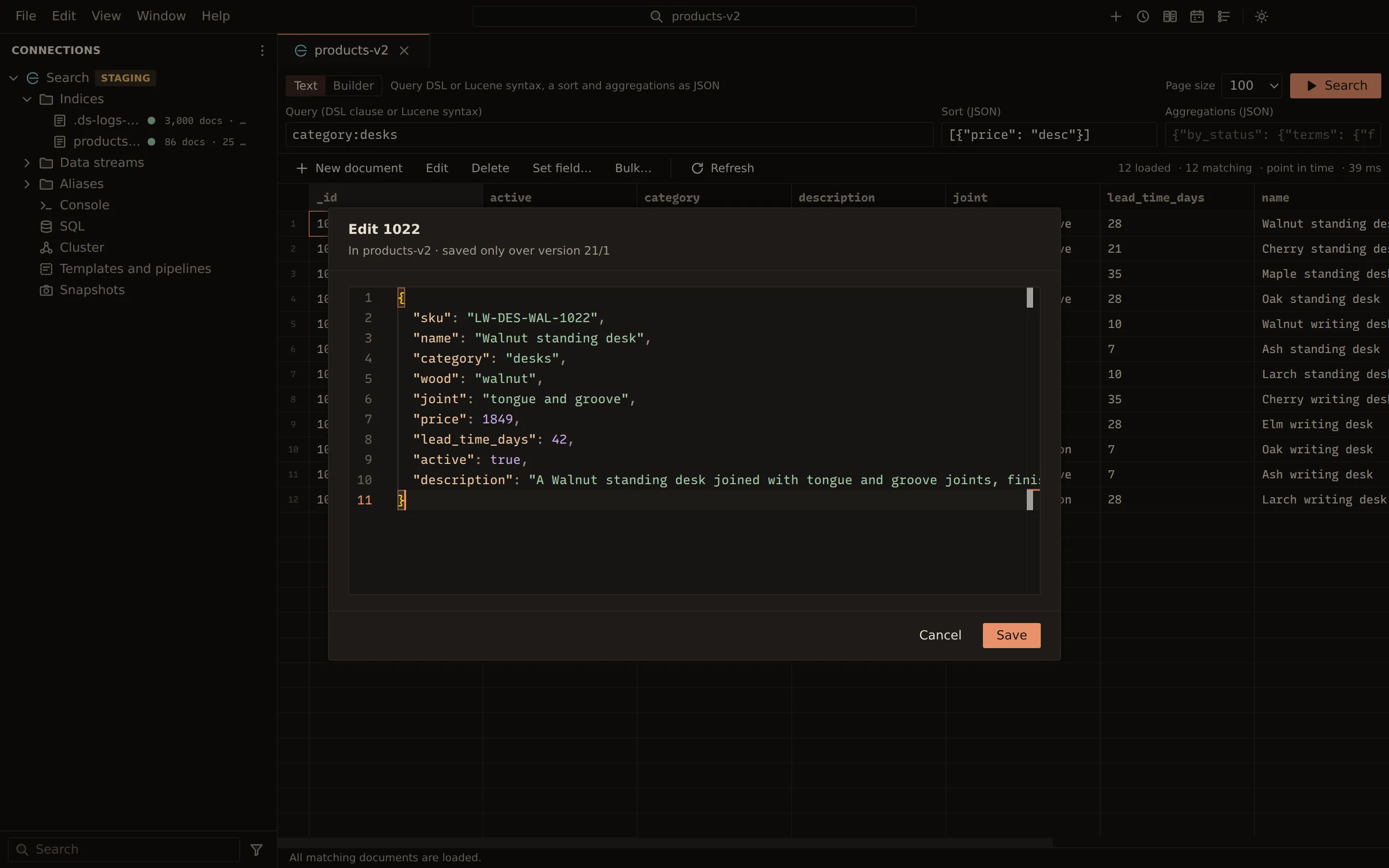
The document grid shows the documents of an index, alias or data stream, one row per hit. Each
_source is flattened into dotted columns (customer.name), mapped fields first, so empty
columns show too. Arrays stay in one cell, since Elasticsearch treats them as multi-valued.
Search
Section titled “Search”- Double-click an index, alias or data stream in the sidebar, or choose Browse documents from its menu.
- Leave the Query editor switch on Text, or set it to Builder to build the search from the mapping (see Query builder).
- In Query (DSL clause or Lucene syntax), type a Lucene query string such as
status:paid AND total:>100, or a Query DSL clause such as{"term": {"status": "paid"}}. - Optionally enter a Sort (JSON), such as
[{"created_at": "desc"}], and Aggregations (JSON), such as{"by_status": {"terms": {"field": "status"}}}. - Pick a Page size (25, 50, 100, 500 or 1000) and choose Search.
More pages load as you scroll, or with Load more. The grid never pages with from and size:
it uses a point in time with search_after where the cluster supports it, and a scroll otherwise,
so you can page past the first 10,000 hits. The status line shows how many documents are loaded,
how many match, and the paging mode (point in time, scroll or one page). When the
total is a lower bound, choose Count exactly. Refresh in the toolbar runs the search again.
Aggregations
Section titled “Aggregations”When the search has aggregations, the results get two tabs, each with a count: Documents for the grid and Aggregations for the aggregation results, which come with the first page. They show as a Tree of aggregations, buckets with their document counts and metrics, or as a Table with one row per innermost bucket.
Edit a document
Section titled “Edit a document”- Select one row and choose Edit, or double-click the row.
- Change the JSON in the editor.
- Choose Save, and confirm the request when the profile asks.
The edit writes only over the version you opened (if_seq_no and if_primary_term). If someone
changed the document in the meantime, nothing is saved and the dialog shows their version. Choose
Reload their version to start again from it, or Overwrite with mine… to replace it after a
confirmation.
Values stay as the server wrote them: 12345678901234567890 and 1.10 show and save unchanged.
To add a document, choose New document, leave Id (empty: generated) empty or give an id, and choose Create. An id that exists already is refused.
Bulk actions
Section titled “Bulk actions”Select one or more rows, then:
| Action | What it sends |
|---|---|
| Delete | One DELETE, or a _bulk of deletes for several rows |
| Set field… | A _bulk of partial updates that sets Field (dotted path) to Value (JSON, or text) |
| Bulk… | NDJSON action and source lines you write, sent to the index’s _bulk |
Deletes and field updates are written at the version each row was read at, so a document that changed meanwhile is left alone. When some items fail, a dialog lists each failed action with its index, id, status and error.
Related
Section titled “Related”Documents Querybara 0.1.1 · built frombc9f5aa