
Command palette
- PostgreSQL
- MySQL
- MariaDB
- MongoDB
- Redis / Valkey
- Elasticsearch
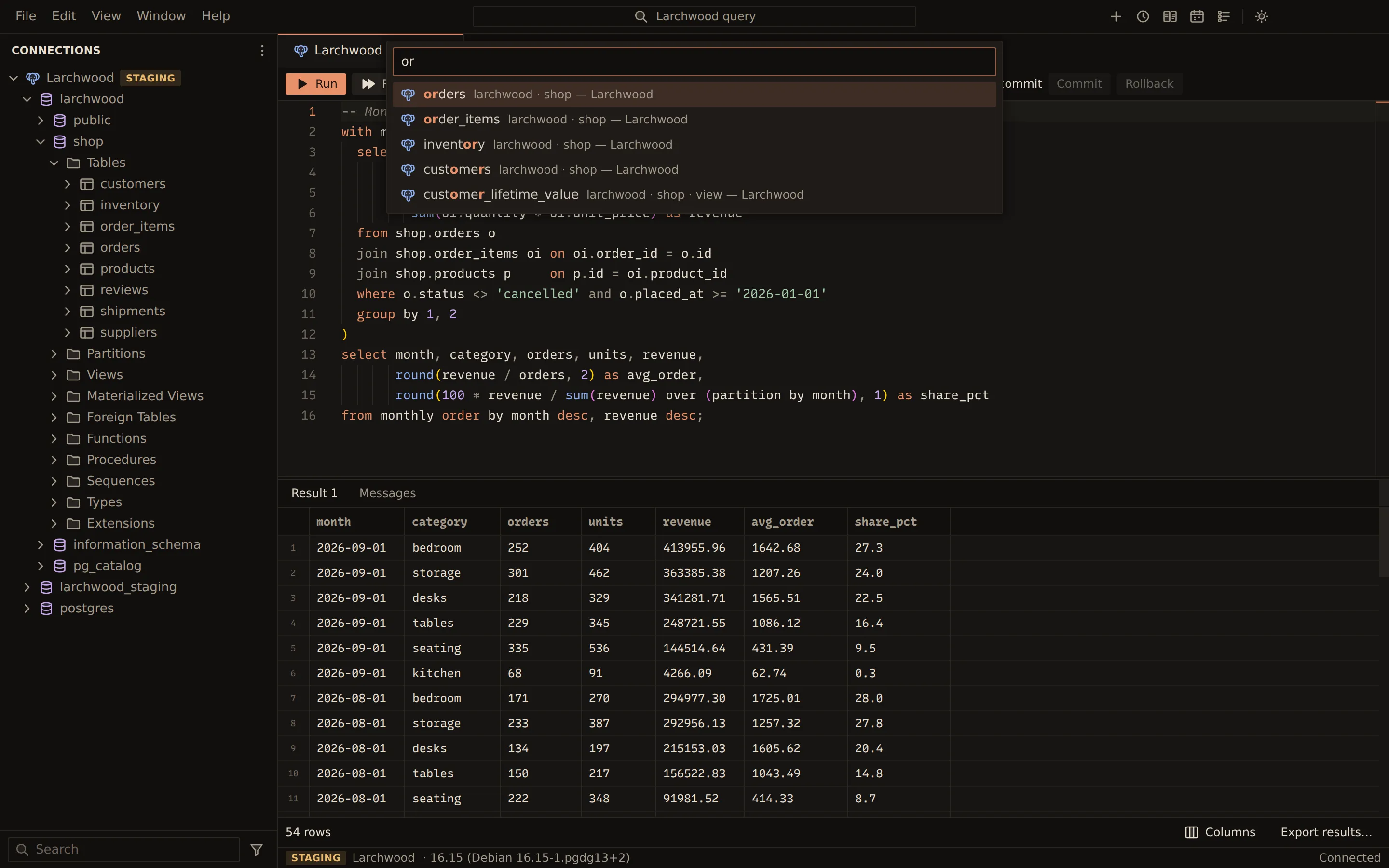
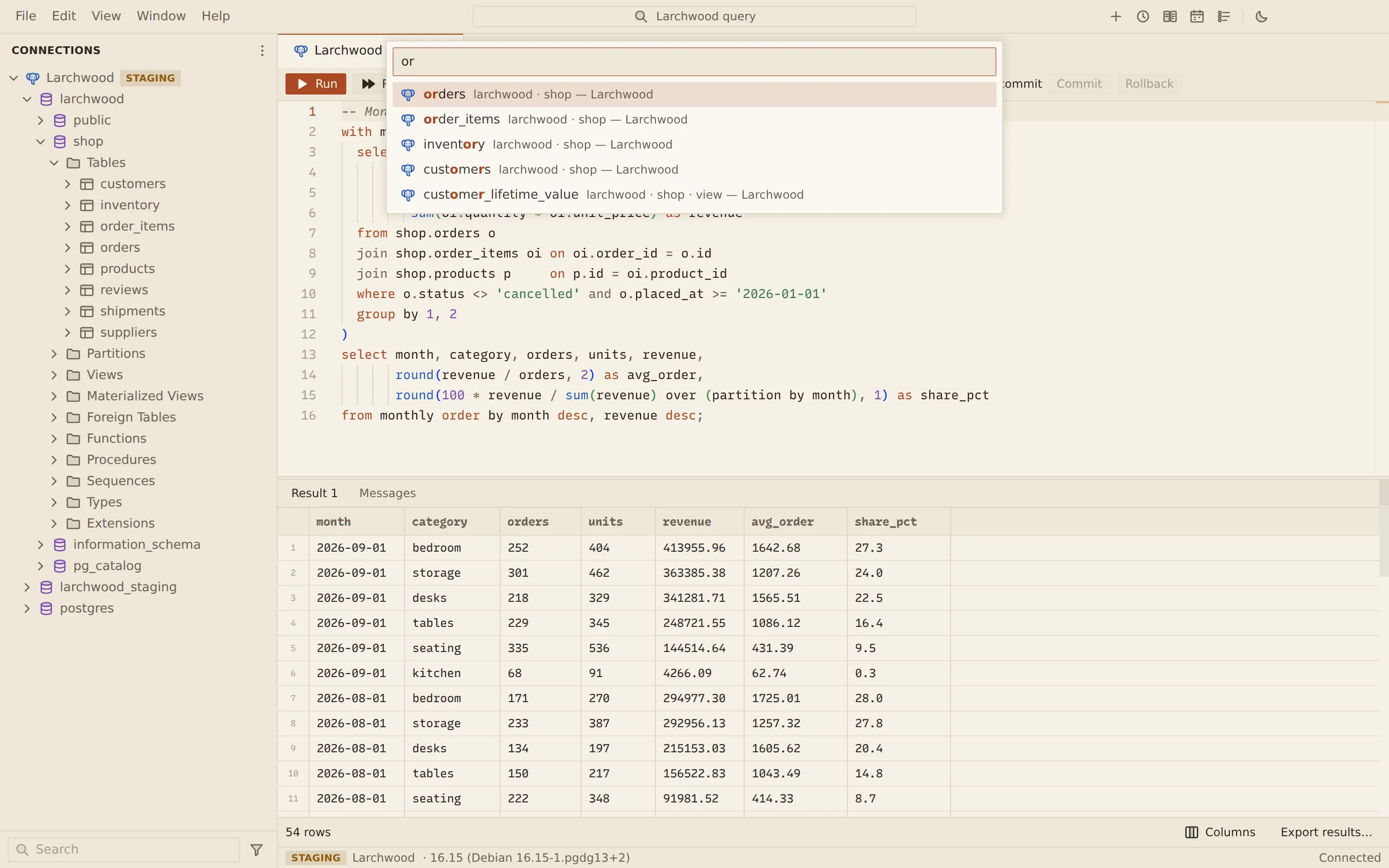
The command palette opens at the top of the window, as VS Code’s does. It has two modes: Go to Table or Collection, which opens an object of a connected database by a few letters of its name, and the command list, which runs any command by name.
Go to a table or collection
Section titled “Go to a table or collection”Press Cmd + P (Ctrl + P on Windows and Linux), or click the search box in the middle of the title bar. You can also choose View → Go to Table or Collection….
Type a few letters of the name, then press Enter. The letters only have to appear in
order: mtea finds manager_teams. The matched letters show in colour. Each entry shows where
the object lives and on which connection.
The object opens as a click on it in the side bar does: a table’s rows in the data view, a view’s rows in a query tab, a collection in the collection view.
What the palette searches:
- the tables and views of each connected PostgreSQL, MySQL and MariaDB connection, from the same schema information that autocomplete reads;
- every table, view and collection the side bar has loaded;
- on MongoDB, the collections of the first eight databases (other than
admin,configandlocal), loaded when the palette opens.
With nothing typed, the objects you opened from the palette recently come first, under recently opened. With no connection open, the palette says “Connect to a database to search its tables and collections.”
Run a command
Section titled “Run a command”Press Cmd + Shift + P
(Ctrl + Shift + P on Windows and Linux), or choose View → Command
Palette…. In Go to Table or Collection, typing > switches to the commands.
Each command shows its group and name, such as Query: New Query Tab, and its keys when it has any. Commands you ran recently come first, under recently used. Type part of the name and press Enter. Commands that cannot run now, such as Disconnect… with no connection open, are not listed.
Some commands ask for a choice in the same list: Connect…, Disconnect… and Edit Connection… ask which connection, Create Table… asks where the table goes, and Create Collection… asks which database.
In the palette, ↑ and ↓ move, Page Up and Page Down move by ten, Enter runs the entry, and Esc closes the palette.
Commands
Section titled “Commands”Every command, with its default keys. A comma separates the two parts of a chord.
| Command | macOS | Windows and Linux |
|---|---|---|
| View: Show All Commands | Cmd + Shift + P | Ctrl + Shift + P |
| Go: Go to Table or Collection… | Cmd + P | Ctrl + P |
| Preferences: Keyboard Shortcuts | Cmd + K, Cmd + S | Ctrl + K, Ctrl + S |
| Preferences: Toggle Light/Dark Theme | Cmd + K, Cmd + T | Ctrl + K, Ctrl + T |
| Connection: New Connection… | Cmd + Shift + N | Ctrl + Shift + N |
| Connection: New Folder | ||
| Connection: Connect… | ||
| Connection: Disconnect… | ||
| Connection: Close All Connections | ||
| Connection: Edit Connection… | ||
| Connection: Search Connections | Cmd + Shift + F | Ctrl + Shift + F |
| Query: New Query Tab | Cmd + T | Ctrl + T |
| Query: Show History | Cmd + Shift + H | Ctrl + Shift + H |
| Table: Create Table… | ||
| Collection: Create Collection… | ||
| View: Show Objects | Cmd + Shift + O | Ctrl + Shift + O |
| View: Close Tab | Cmd + W | Ctrl + W |
| View: Next Tab | Control + Tab | |
| View: Previous Tab | Control + Shift + Tab | |
| View: Refresh | F5 | F5 |
| Tools: Schedules | ||
| Tools: Toggle Jobs | Cmd + Shift + J | Ctrl + Shift + J |
| Help: About Querybara | ||
| Help: Check for Updates… | ||
| Help: Release Notes |
View: Refresh reloads the active table data view or Objects tab. Connection: Search Connections puts the cursor in the side bar’s search.
To change a command’s keys, or give keys to one without, use the Keyboard Shortcuts editor.
Related
Section titled “Related”Documents Querybara 0.1.1 · built frombc9f5aa