
SSH tunnels
- PostgreSQL
- MySQL
- MariaDB
- MongoDB
- Redis / Valkey
- Elasticsearch
- CLI
An SSH tunnel reaches a database that is only reachable from inside a network: Querybara connects to an SSH server (through any jump hosts in front of it), and the SSH server forwards to the database. Every engine can use one.
- A connection opens one SSH session, and every tab of that connection shares it.
- Each server’s host key is checked against known_hosts, the file the app and the CLI share. A new key asks you to trust it; a changed key blocks the connection.
- The session hops through the jump host to the bastion: a chain of SSH hops, one shared session per path.
- From the bastion, traffic reaches the database inside the private network. The database is never exposed.
- A replica set or cluster is reached node by node, by the names its servers announce, through the same route.
Set up a tunnel
Section titled “Set up a tunnel”- On the General tab of the connection dialog, fill in the database endpoint as the SSH
server sees it. For a database on the SSH server itself, that is often
localhost. - Open the SSH tab and tick Connect through an SSH tunnel. The tab shows a green dot while the tunnel is on.
- Under SSH server, fill in SSH host, SSH port (22 to start) and SSH user.
- Choose the SSH authentication: Password, Private key or SSH agent.
- Choose Test Connection. The SSH tunnel step shows whether the tunnel opened and reached the database.
Authentication
Section titled “Authentication”| SSH authentication | Fields |
|---|---|
| Password | SSH password and SSH password storage. |
| Private key | Private key (a path, or Browse…), and for an encrypted key Key passphrase and Passphrase storage. |
| SSH agent | None. Uses the keys of the running ssh-agent (SSH_AUTH_SOCK), or Pageant on Windows. |
Secrets follow the usual storage choices; see Passwords and keychain.
Private keys
Section titled “Private keys”When you choose a key file, Querybara reads it and shows its format, key type and SHA-256 fingerprint under the field, and whether a passphrase protects it. For an encrypted key, type the passphrase and choose Check to test it.
| Format | How Querybara uses it |
|---|---|
| OpenSSH | As it is. |
| PEM | As it is. |
| PKCS#8 | Decoded in memory. |
| PuTTY | Converted to PEM on import. The copy is saved in the ssh-keys folder of Querybara’s data folder, readable by you only, and the profile uses it. |
After a PuTTY conversion the line under the field says “converted from PuTTY format and saved
as” followed by the new path. Choose the private key file, not the .pub file.
Jump hosts
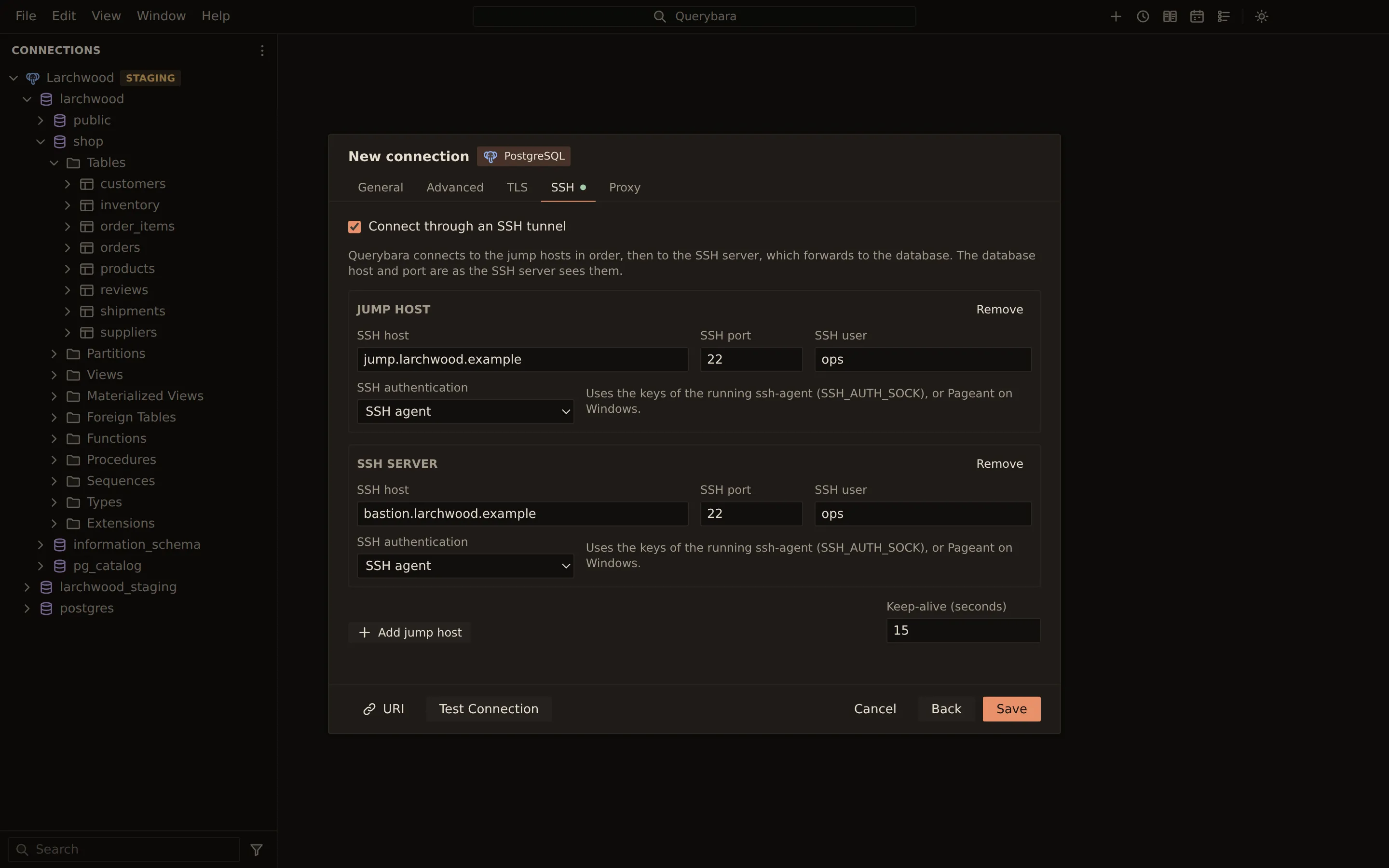
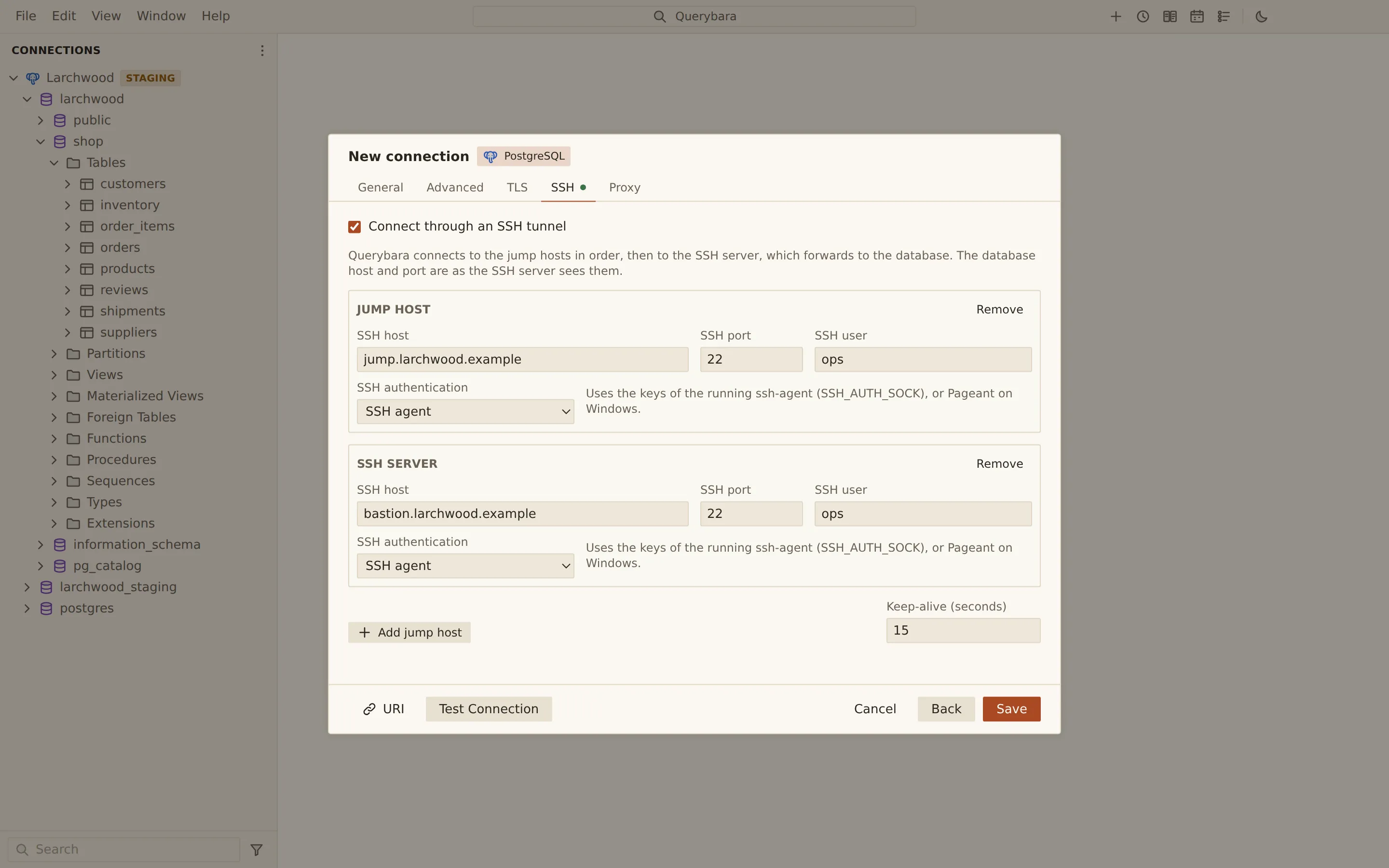
Section titled “Jump hosts”On the SSH tab, choose Add jump host to put another SSH server in front of the one that reaches the database. The new hop appears as Jump host above SSH server. Querybara connects to the jump hosts in order, then to the SSH server, which forwards to the database. Each hop has its own host, port, user and authentication, and Remove takes a hop out. A tunnel holds up to eight hops, the SSH server included.
Keep-alives
Section titled “Keep-alives”Keep-alive (seconds), at the bottom of the SSH tab, sets how often Querybara sends a keep-alive over the SSH session, from 0 (off) to 3600. It starts at 15.
One session per connection
Section titled “One session per connection”A connection’s tabs share one SSH session rather than opening one each. Querybara opens the session when it connects, so a wrong password or an untrusted host key fails at connect, not at the first query. If the session drops, Querybara opens a new one the next time it is needed.
Host keys
Section titled “Host keys”Querybara checks the host key of every SSH server on the way, jump hosts included, against its
known hosts file. The desktop app and the querybara command-line tool share this file, named
known_hosts, next to Querybara’s local store.
A new server
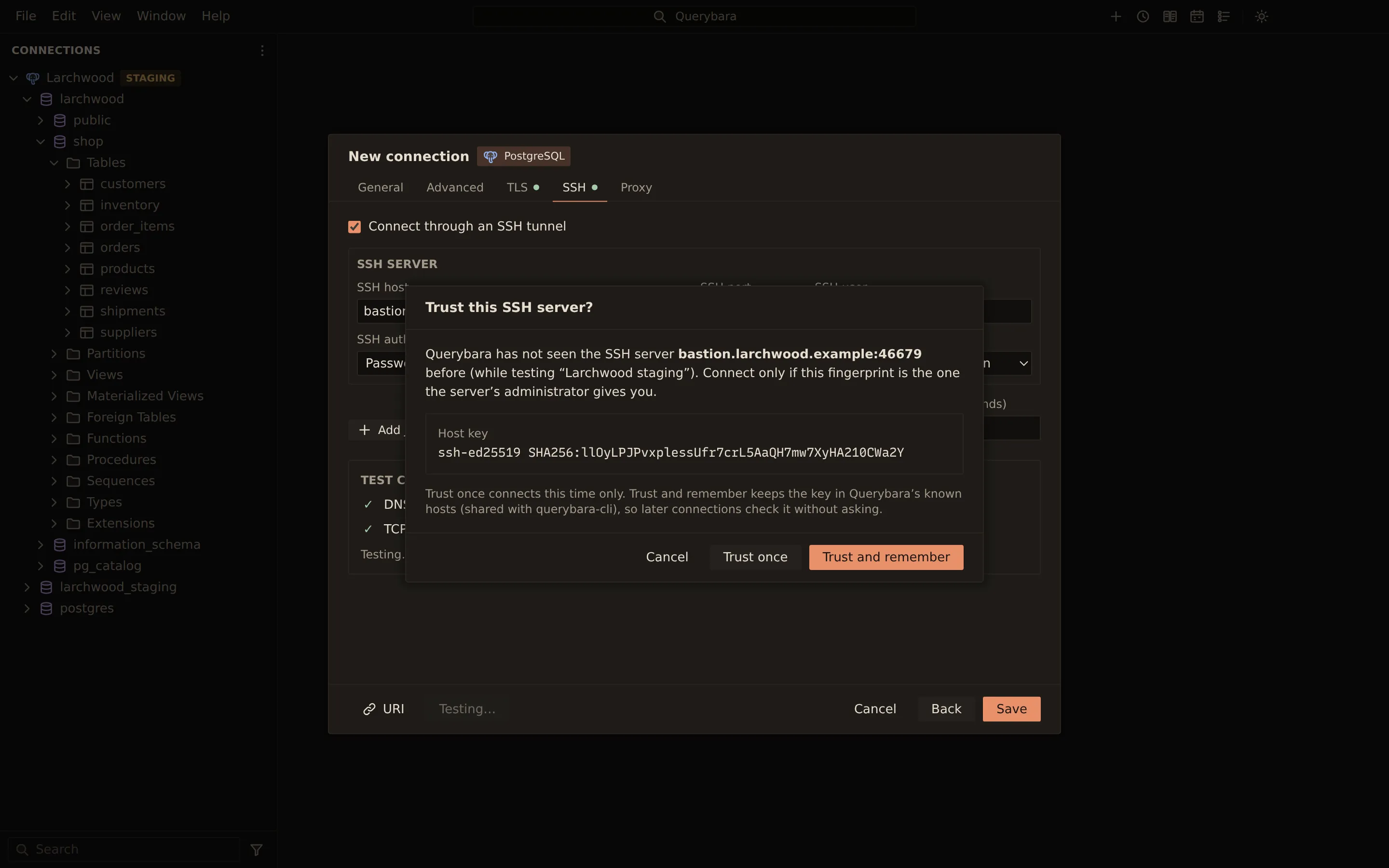
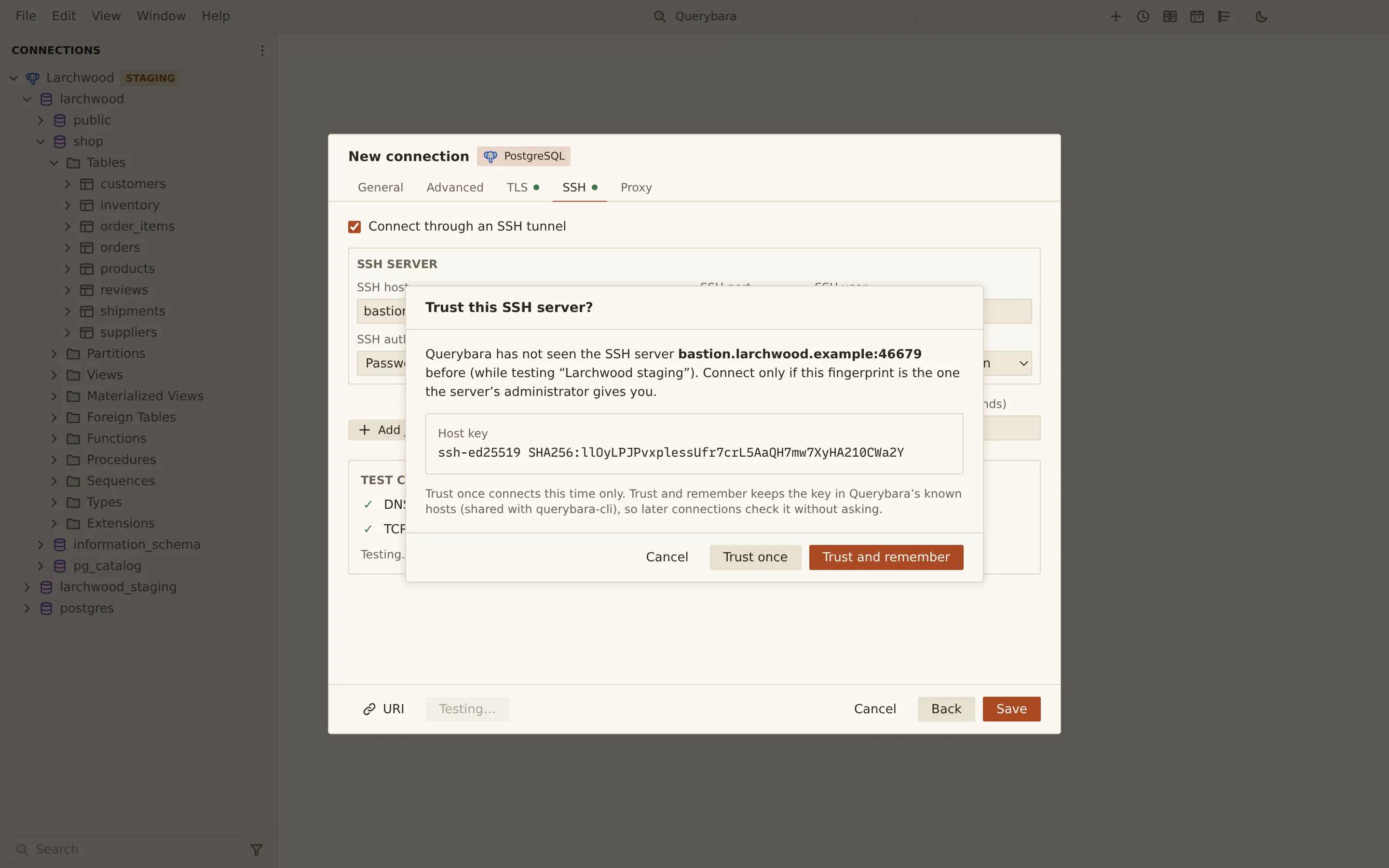
Section titled “A new server”The first time Querybara meets a server, it asks Trust this SSH server? and shows the key’s fingerprint. Compare it with the fingerprint the server’s administrator gives you.
| Choice | What happens |
|---|---|
| Trust once | Connects this time only. |
| Trust and remember | Connects and keeps the key in the known hosts, so later connections do not ask. |
| Cancel | Does not connect. |
A changed key
Section titled “A changed key”If a server presents a different key from the one Querybara remembered, Querybara does not connect. It shows Warning: the SSH host key has changed with the remembered key and the key presented now. Someone could be intercepting the connection, or the server was reinstalled.
Limits
Section titled “Limits”- A Unix socket endpoint cannot go through a tunnel.
- Elasticsearch reaches one node through a tunnel: list a single URL, or use a Cloud ID.
- MongoDB replica sets and Redis Sentinel or Cluster work through a tunnel; see Replica sets, Sentinel and Cluster.
For MongoDB, Redis and Elasticsearch, the SSH tab explains how the engine’s endpoints are reached through the tunnel while it is on.
From the command line
Section titled “From the command line”A saved profile uses its own tunnel. For a URI target, give the hops with --ssh, repeated for
jump hosts in the order to connect:
querybara query "postgres://[email protected]/shop" --ssh [email protected] --ssh-agent -e "select 1"| Option | What it does |
|---|---|
--ssh <user@host[:port]> |
An SSH hop; repeat it for jump hosts, in order. |
--ssh-key <path> |
A private key file (OpenSSH, PEM or PuTTY .ppk). |
--ssh-agent |
Log in with the keys of ssh-agent (SSH_AUTH_SOCK) or Pageant. |
--ssh-password-env <VAR> |
Read the SSH password from this variable (default QUERYBARA_SSH_PASSWORD, else a prompt). |
--ssh-accept-new |
Trust and remember a host key not seen before. A changed key is always refused. |
--known-hosts <path> |
Use another known hosts file instead of the desktop app’s. |
In a terminal, the CLI asks before it trusts a new host key; without a terminal it refuses the key
unless --ssh-accept-new is given. A key passphrase comes from QUERYBARA_SSH_KEY_PASSPHRASE or a
prompt.
Related
Section titled “Related”Documents Querybara 0.1.1 · built frombc9f5aa