
Search indexes
- Redis / Valkey
A search index covers the hashes or JSON documents under one or more key prefixes, so you can query
them by text, tags, numeric ranges, places and vectors. The Search indexes tool lists a connection’s
indexes, queries one with sorting, paging and scores, shows its schema with the FT.CREATE that
recreates it, and creates new indexes from a form that can suggest the fields from your keys. It
works with the Redis Query Engine (RediSearch), which Redis 8 and Redis Stack include, and with
valkey-search on Valkey.
Open the tool
Section titled “Open the tool”Open Tools › Search indexes under the connection. The list on the left shows the indexes; the first one opens. Select another to open it. Refresh reads the list again. With no indexes yet, the tool says “No search indexes yet” and offers New index….
The header of an open index shows its name, whether it indexes hashes or JSON, its key prefixes
((every key) when it has none), and its figures: documents, terms, index memory and the filter,
if any. While the server is still indexing existing keys, a progress bar shows how far it got.
Documents that failed to index are counted, with the last error and its key.
If the server has no search module, the tool says “No search module here”: Redis 8 and Redis Stack include the Redis Query Engine, and Valkey needs valkey-search loaded.
In Cluster mode each shard has its own indexes. Node picks the primary the tool works on; with All primaries, the first primary answers.
Query an index
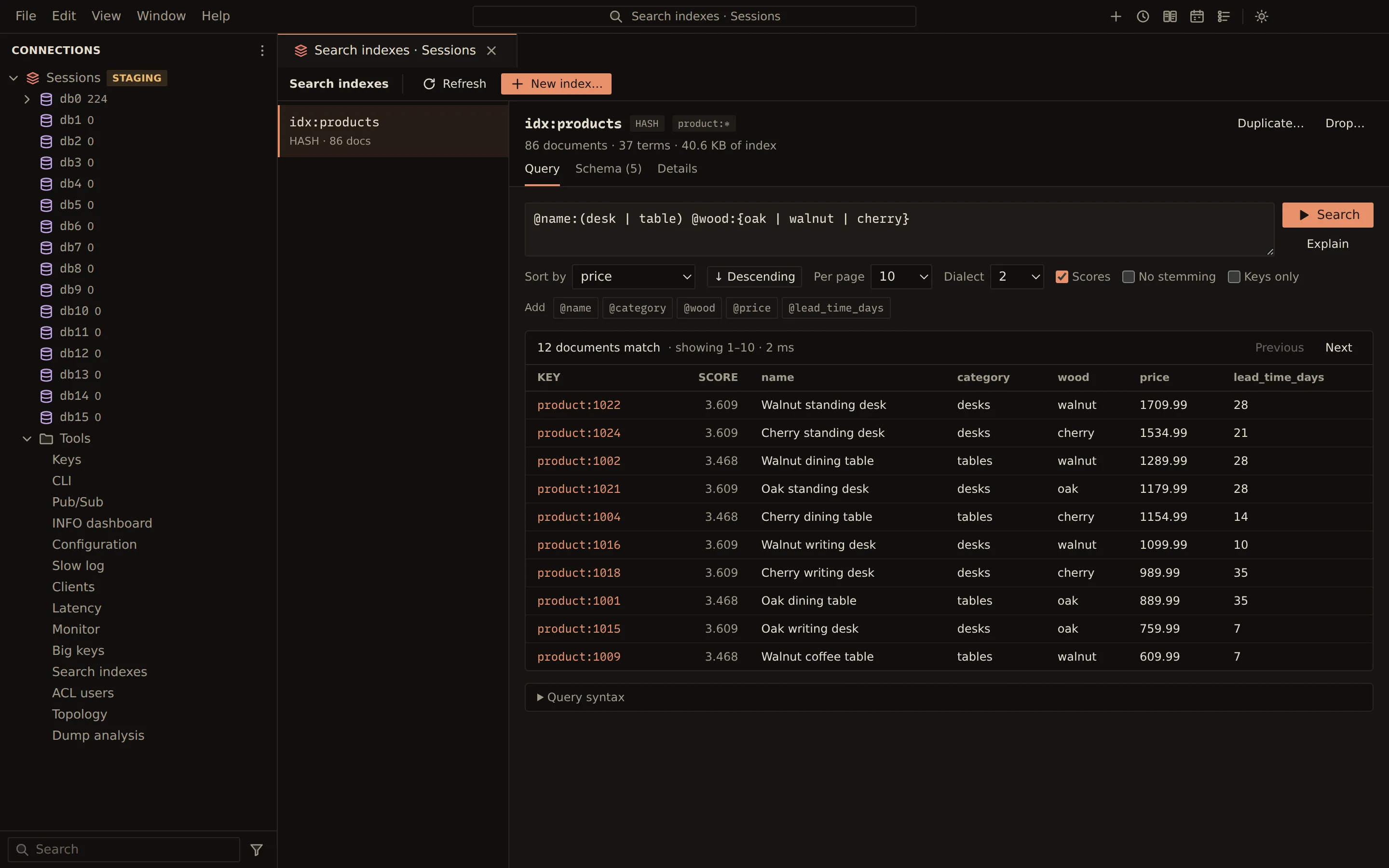
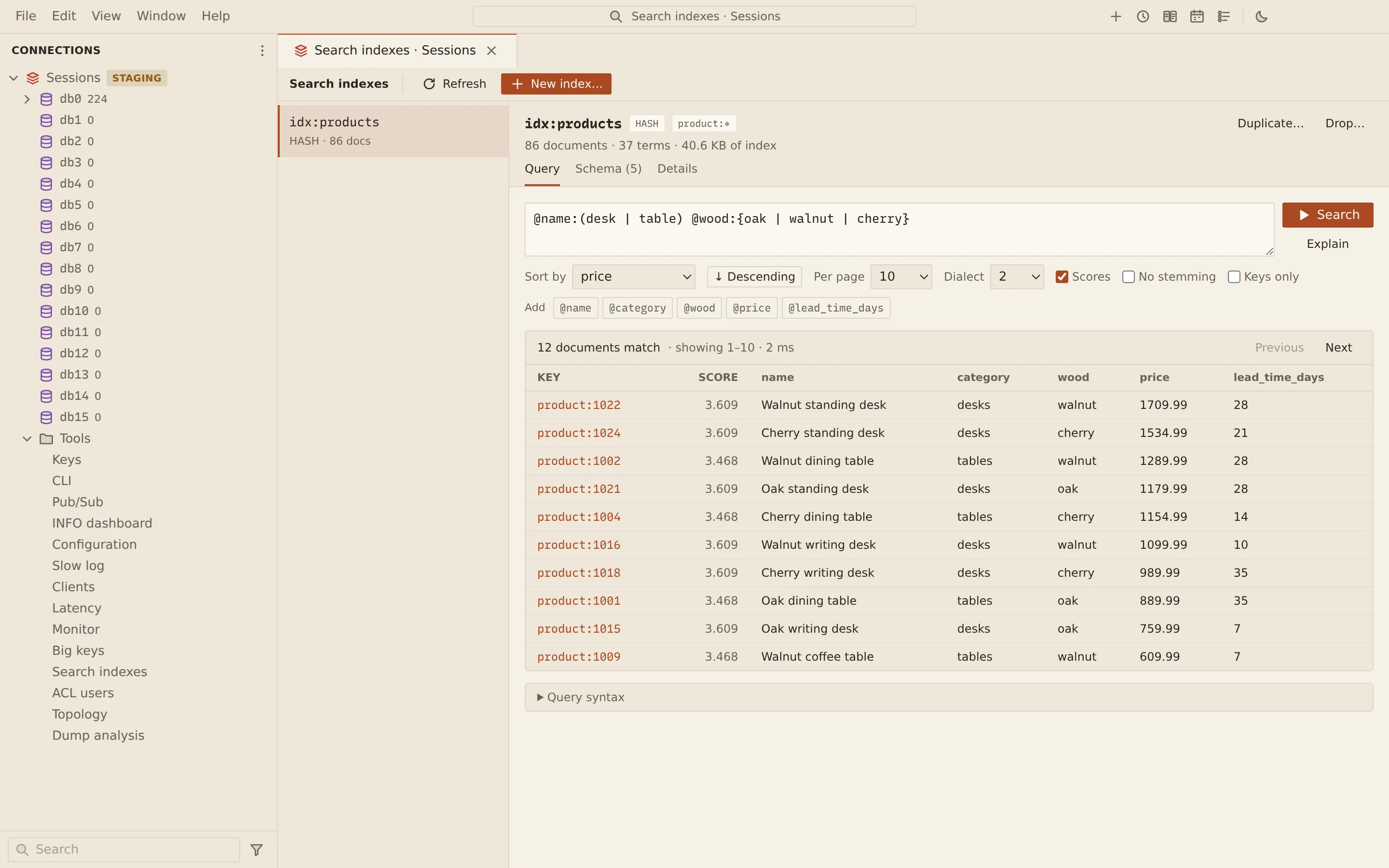
Section titled “Query an index”The Query tab runs FT.SEARCH. It starts with *, every document, and runs as soon as the
index opens.
- Type the query, for example
@category:{chairs} @price:[100 500]. Under the query, each field of the index has a button (such as @price) that adds a clause for it. - Optionally set Sort by (a sortable field, or Relevance), Per page (10, 25, 50 or 100) and Dialect (1 to 4; 2 by default). With a sort field set, the button beside it switches between ↑ Ascending and ↓ Descending.
- Choose Search, or press Ctrl + Enter (Cmd + Enter on macOS) in the query.
The results say how many documents match, which ones are shown and how long the query took. Previous and Next move through the pages. Each row shows the key and the returned fields; for a JSON index the whole document shows under Document. Click a key to open it in its value editor.
| Option | What it does |
|---|---|
| Scores | Adds a Score column (WITHSCORES). |
| No stemming | Matches words exactly as typed (VERBATIM). |
| Keys only | Returns the keys without their fields (NOCONTENT). |
Explain shows how the engine reads the query (FT.EXPLAIN), under “How the engine reads it”.
Query syntax opens a short reference with examples: words, one field, tags, numeric ranges, a
radius around a point, negation and nearest vectors.
Read the schema
Section titled “Read the schema”The Schema tab lists each field with the name you query it by, its hash field or JSON path, its
type and its options. Below the list, “The command that creates it” shows the FT.CREATE that
recreates the index; Copy copies it.
The Details tab lists every figure FT.INFO reported for the index.
Create an index
Section titled “Create an index”- Choose New index….
- Enter the index Name and pick what it Indexes: Hashes or JSON documents.
- Enter the Key prefixes, such as
product:(separate several with spaces or commas; empty indexes every key), and optionally a Filter (optional), such as@price > 0. - Choose Suggest from keys. Querybara reads up to 50 keys under the first prefix and proposes a field for each hash field or JSON path it finds, with a type from its values. Check each type. You can also choose Add field and fill in a row yourself.
- Set each field’s options (see below).
- Check the command under Sends, for example
FT.CREATE idx_products ON HASH PREFIX 1 product: SCHEMA name TEXT category TAG price NUMERIC SORTABLE. - Choose Create index.
The new index opens on its Query tab. Until the form is complete, the bottom of the dialog says what is missing, such as “Name the index” or “Add at least one field”.
Each field row has the hash Field or JSON Path, a Query name (required for a JSON path) and a Type:
| Type | Options |
|---|---|
| TEXT | Weight, No stemming, Sortable |
| TAG | Separator (one character), Case-sensitive, Sortable |
| NUMERIC | Sortable |
| GEO | Sortable |
| VECTOR | Algorithm (HNSW or FLAT), dimension, distance (COSINE, L2 or IP) and element type (FLOAT32, FLOAT64, FLOAT16 or BFLOAT16) |
| GEOSHAPE | None |
Suggestions type numbers as NUMERIC, lon,lat pairs as GEO, comma lists and short repeated values as
TAG, and anything else as TEXT. JSON arrays are suggested as path[*].
Duplicate… in an index’s header opens the same form filled in from that index, under the name
<index>_copy.
Drop an index
Section titled “Drop an index”Choose Drop… in the index’s header, then:
- Drop the index: the documents stay.
- Drop the index and its documents:
FT.DROPINDEX … DDalso deletes the keys the index holds.
The confirmation shows the exact command; choose Drop to run it.
Write rules
Section titled “Write rules”| Connection | What happens |
|---|---|
| Read-only | Indexes can be listed and queried, not created or dropped. |
| Production, or confirm writes | Creating an index asks first and shows the command. |
| Any | Dropping an index always asks first. |
Aggregations (FT.AGGREGATE), aliases, synonyms, spelling and FT.ALTER are not in the tool; run
them in the CLI.
From the command line
Section titled “From the command line”querybara query runs FT.* commands like any other command line:
querybara query "redis://cache.example.com:6379/0" -e 'FT._LIST'querybara query "redis://cache.example.com:6379/0" -e 'FT.SEARCH idx_products "@category:{chairs}" LIMIT 0 10'Related
Section titled “Related”Documents Querybara 0.1.1 · built frombc9f5aa